Managing Leads and converting them to Customers
Use Lead statuses to understand what needs attention, then convert a successful Lead into a Customer and primary Contact.
Follow these steps
- 1
Use Lead status to identify the next action
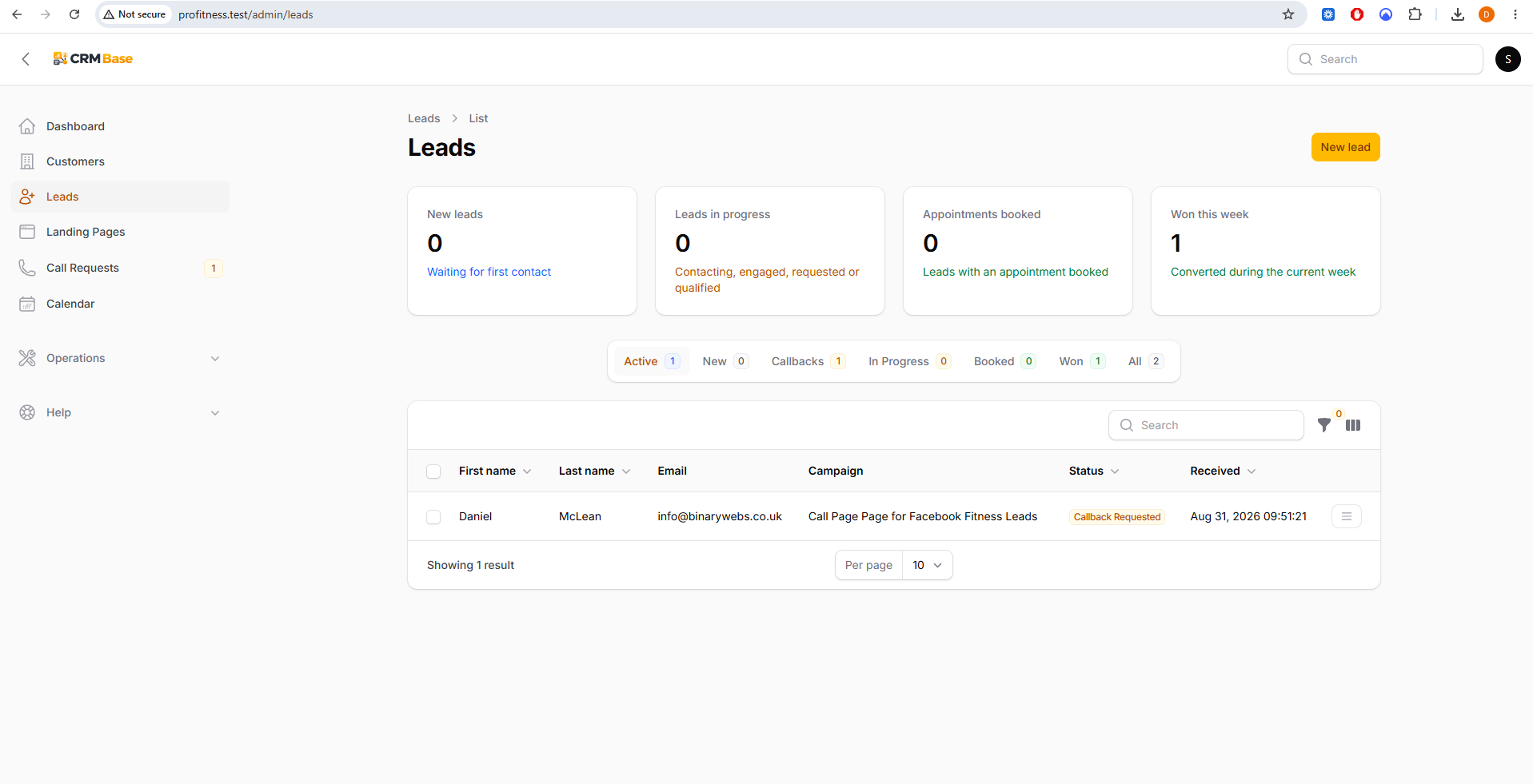
The Leads list groups enquiries into useful workflow tabs. In this example the Lead has Callback Requested status, so it appears under Callbacks. Use the status and campaign columns to understand why the Lead is in the CRM and what should happen next.
 Expected resultYou can identify the correct follow-up from the Lead list.
- 2
Convert a successful Lead
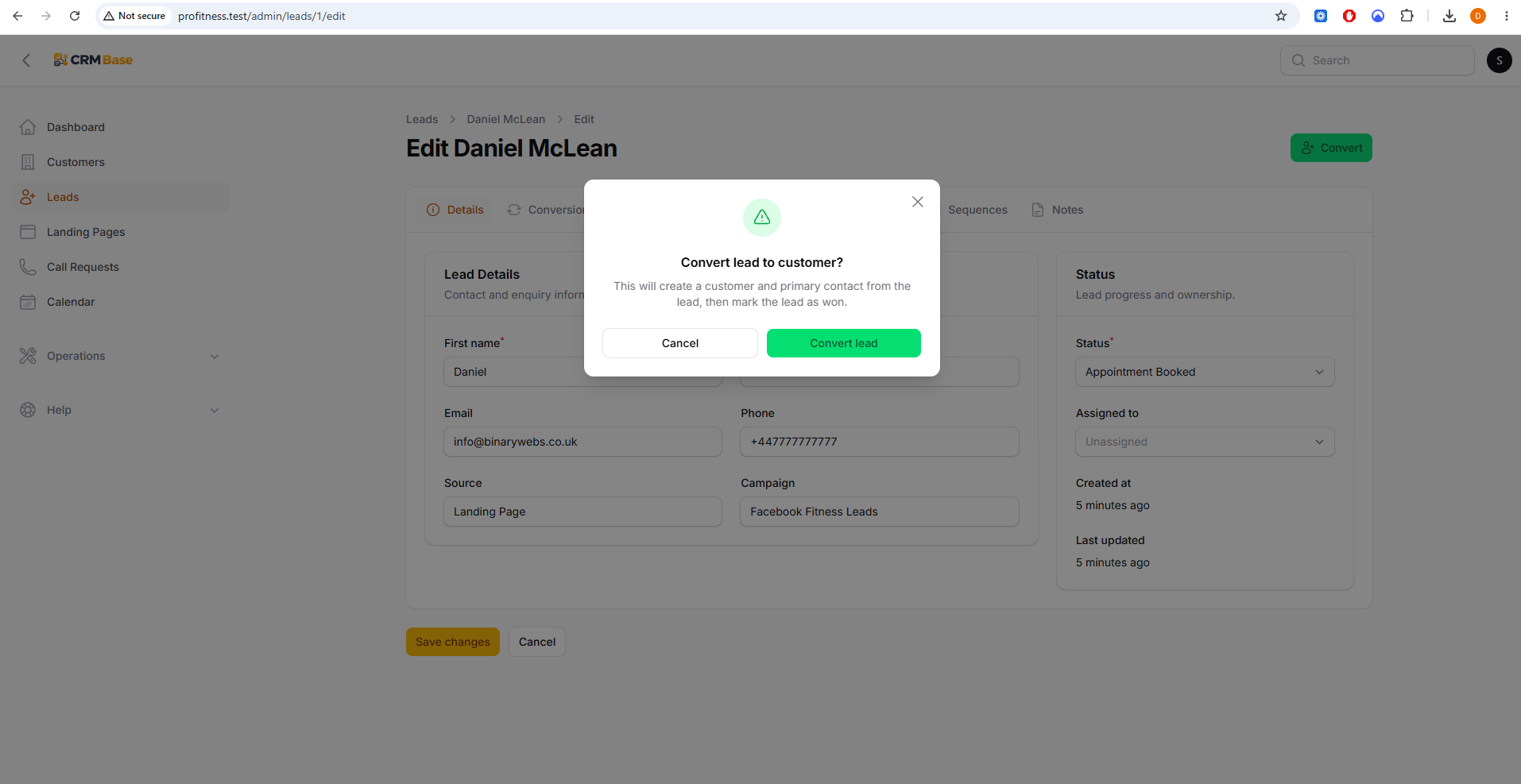
When the enquiry becomes a customer, open the Lead and select Convert. Confirm Convert lead in the dialog. The CRM creates a Customer and primary Contact from the Lead and marks the Lead as won.
 Expected resultThe successful enquiry is converted without re-entering the main contact information.
- 3
Review the conversion link
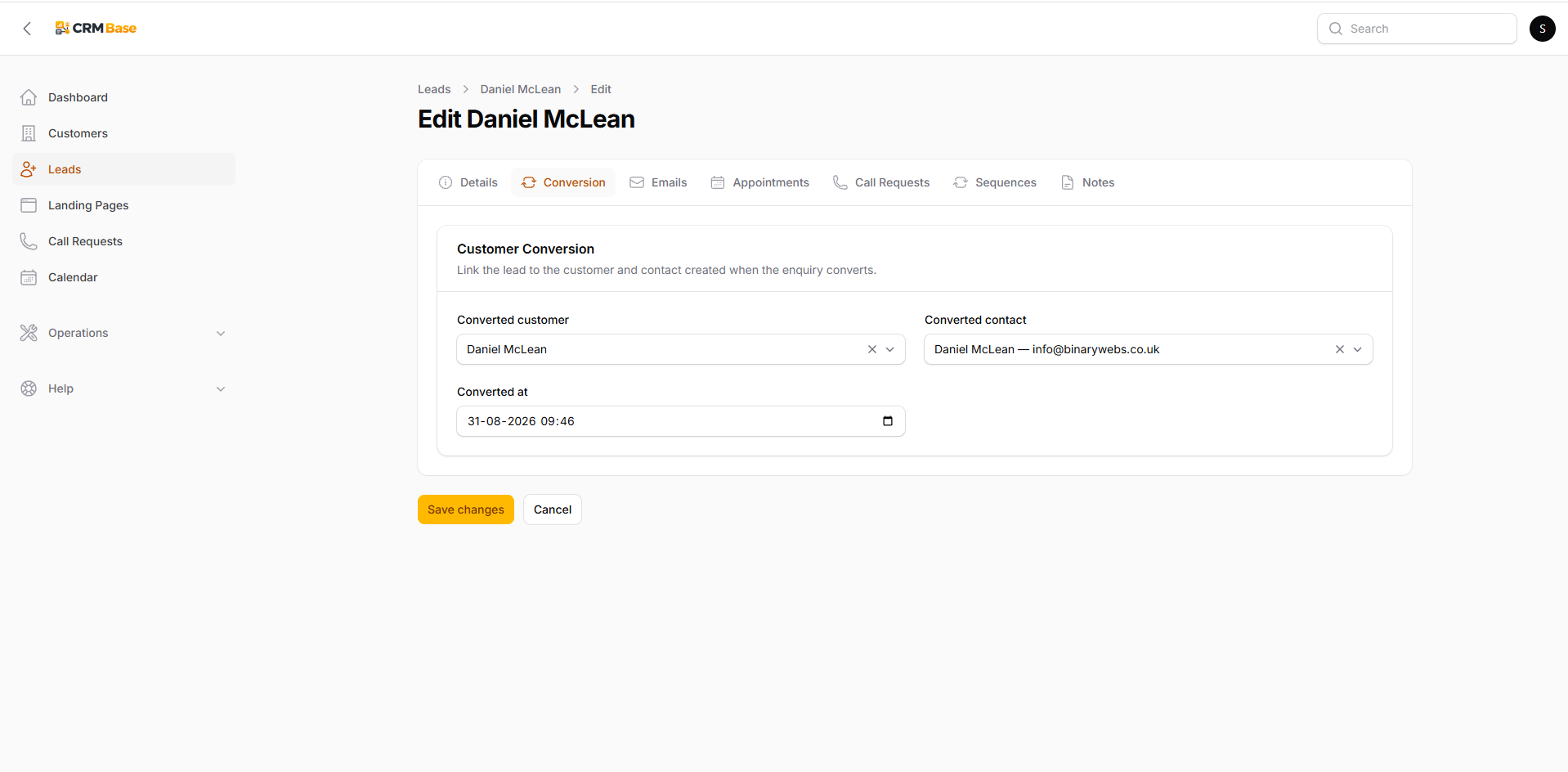
After conversion, open the Conversion tab on the Lead. It shows the linked Customer, linked Contact and the conversion date. This provides a clear bridge between the original enquiry and the ongoing customer record.
 Expected resultThe Lead is linked to the Customer and Contact created from it.
- 4
Use the Won tab
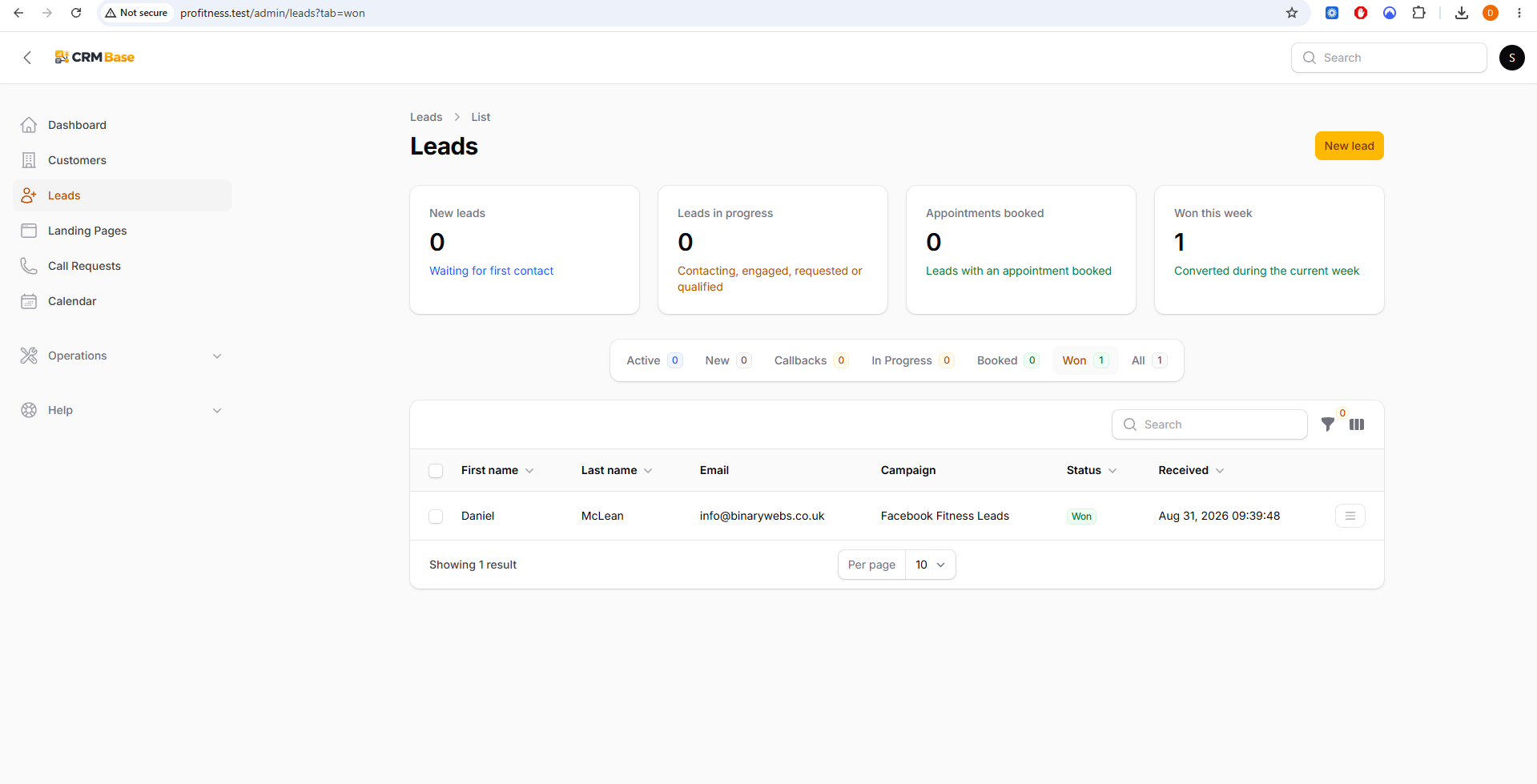
Converted Leads appear under Won and contribute to the Won this week figure. Keep these Leads rather than deleting them so the CRM retains the sales outcome and campaign history.
 Expected resultSuccessful Leads remain available as part of the sales history.
When you have finished
You can use Lead statuses to manage the sales process and convert a successful enquiry into a linked Customer and Contact without losing the original Lead history.
Troubleshooting
The Convert button is not available
The Lead may already have been converted. Check the Conversion tab for a linked Customer.
A Lead is in the wrong tab
Open the Lead and correct its Status. The tabs and dashboard figures use the current status.
The converted customer details need more information
Open the linked Customer and Contact and add anything that was not collected on the Landing Page.