Creating and managing Landing Pages
Create public lead-capture pages, choose whether a page offers appointment booking or callback requests, and manage the pages already in use.
Follow these steps
- 1
Start from the Landing Pages list
Open Landing Pages from the main navigation. If no pages have been created yet, the list is empty and the New landing page button is available at the top right.
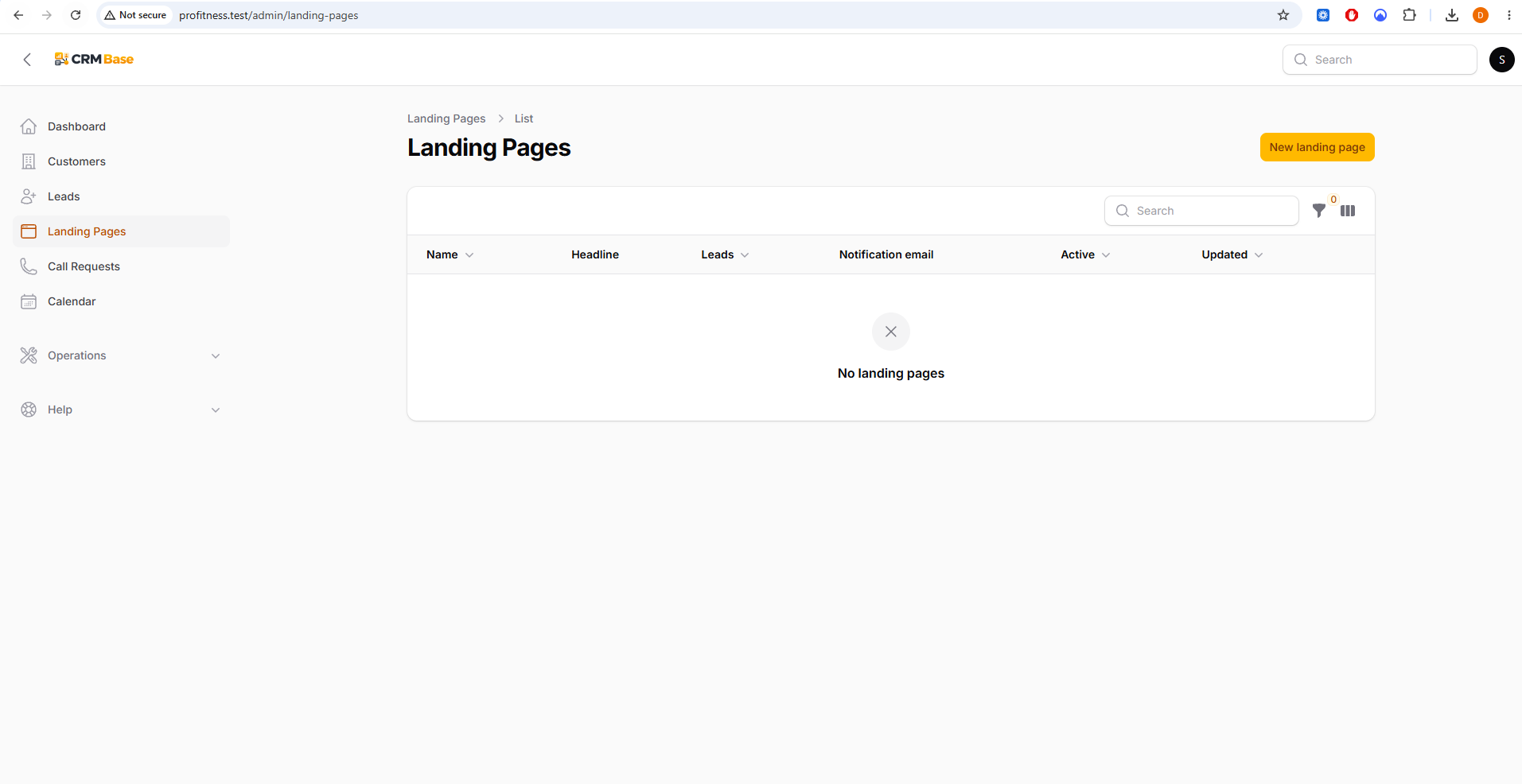 Expected resultYou are ready to create the first public page.
- 2
Create a new Landing Page
Select New landing page. In Details, give the page a clear internal Name and a simple Slug. The slug forms the public address, so use a short value that is suitable for sharing in adverts or links. The Content and Success Message tabs are used to control what the visitor sees.
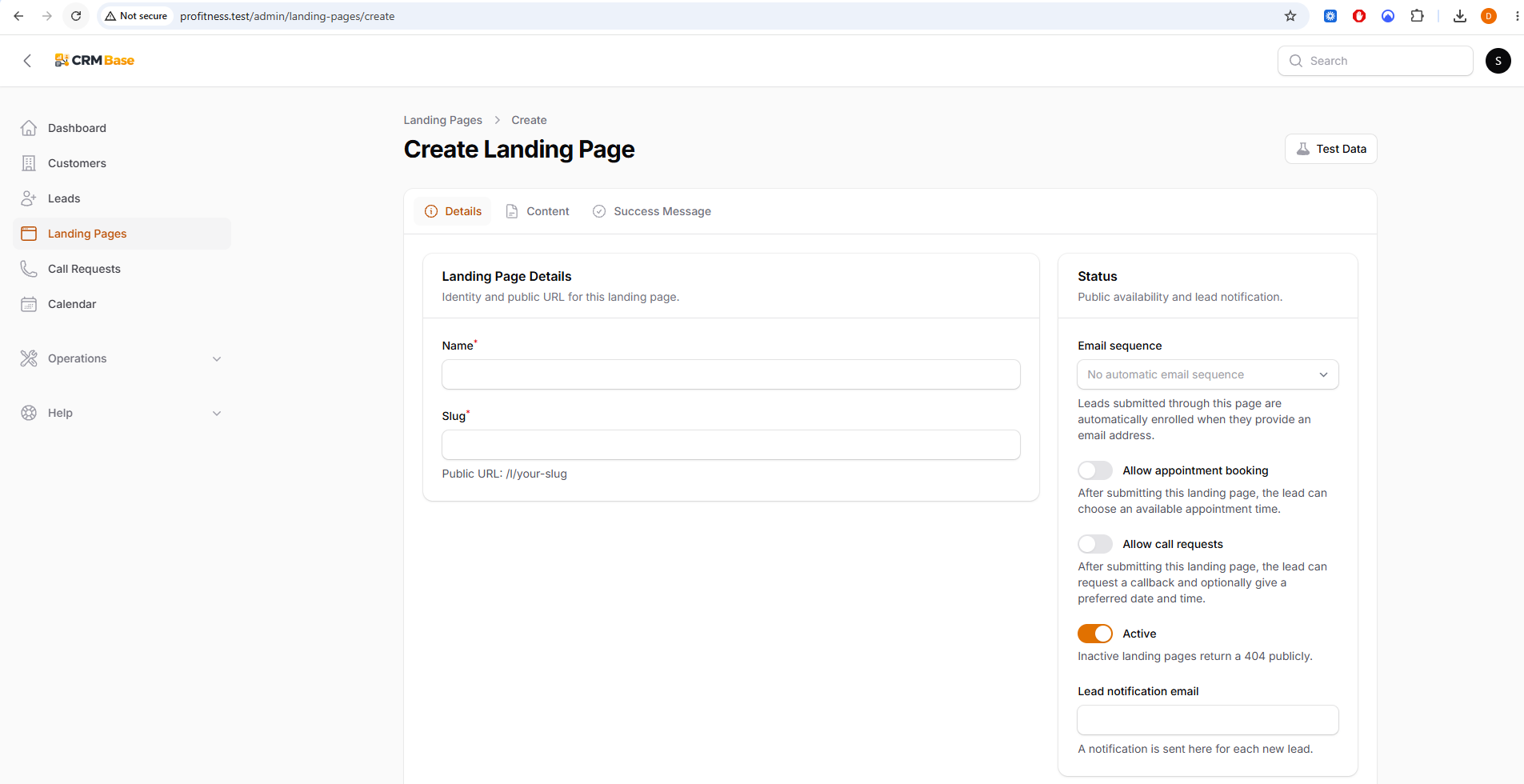 Expected resultThe new page has an internal name and a public URL.
- 3
Configure an appointment-booking Landing Page
Turn on Allow appointment booking when visitors should choose a consultation slot after submitting the form. Keep Allow call requests off if this page is intended to send people straight to appointment selection. Set the Lead notification email and leave Active on when the page is ready to be used.
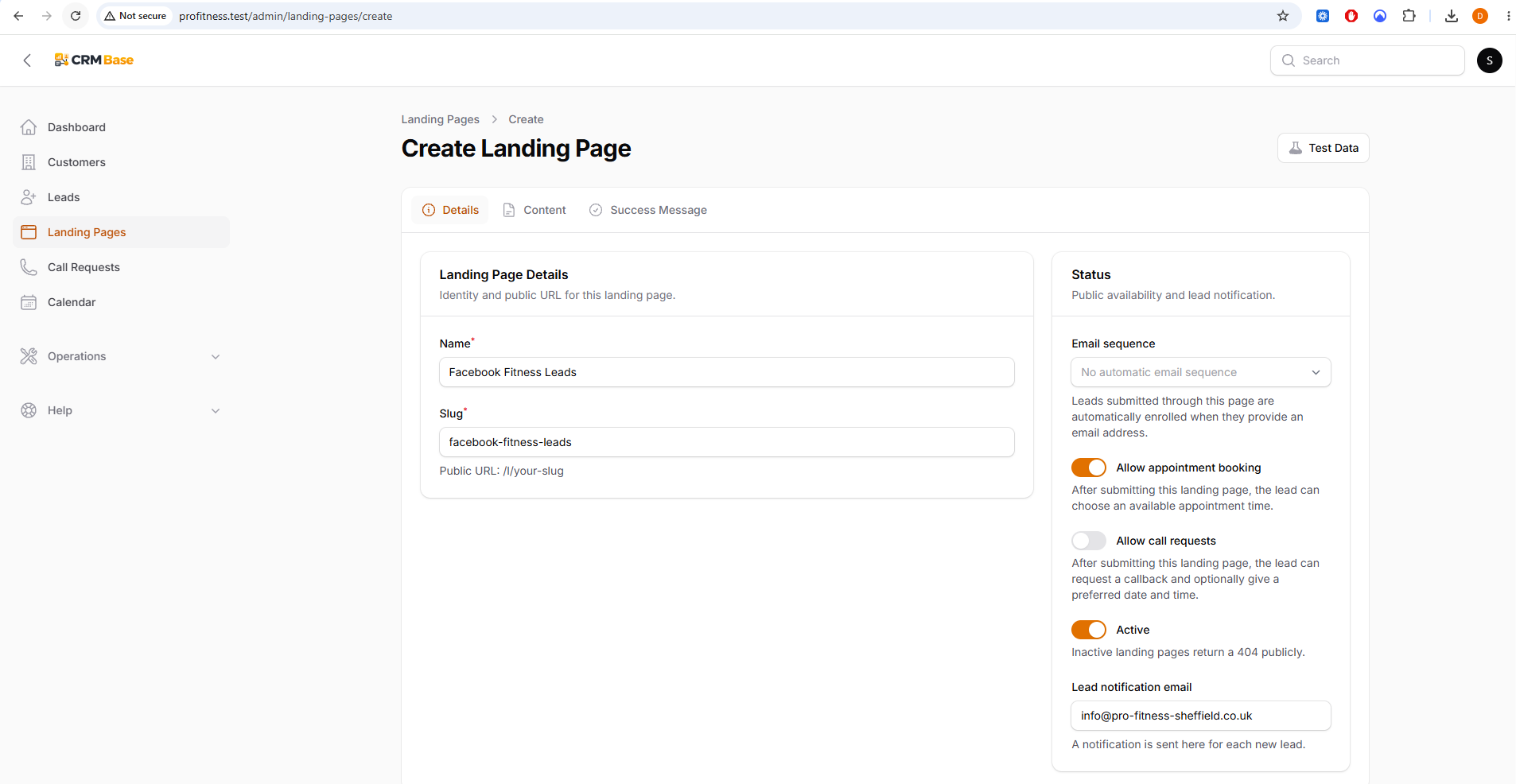 Expected resultVisitors who submit this page will be offered available appointment times.
- 4
Configure a callback Landing Page
For a callback campaign, turn on Allow call requests. Visitors can then choose Call me back ASAP, No Call Back Needed, or Let me specify callback time. Appointment booking can remain off when the campaign is intended to generate phone follow-up rather than booked consultations.
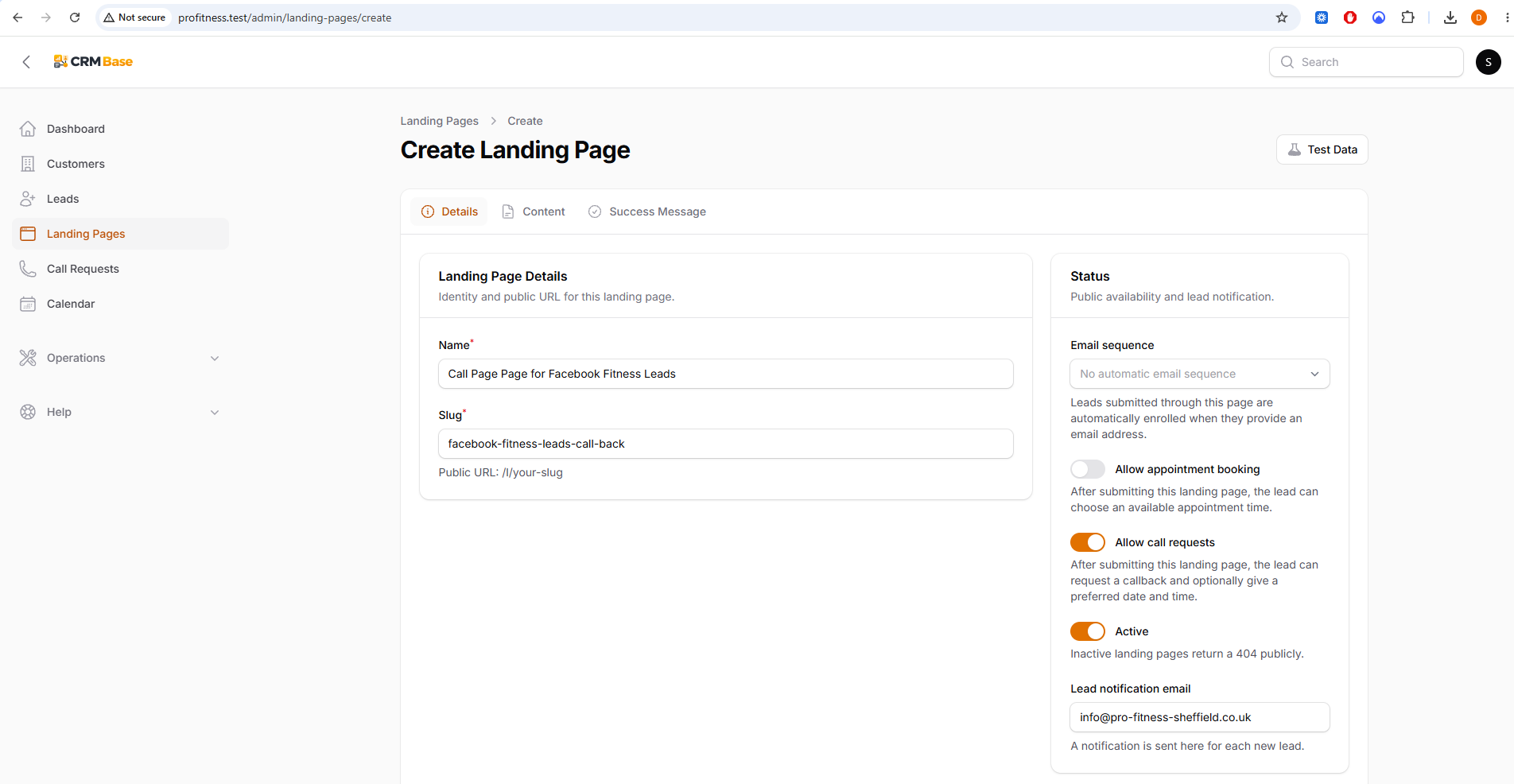 Expected resultVisitors who submit this page can request the type of callback they prefer.
- 5
Use View and Edit from the list
After saving, the Landing Pages list shows the page name, headline, number of Leads, notification email, active state and last update. Select View to open the public page in a new browser tab, or Edit to change its configuration.
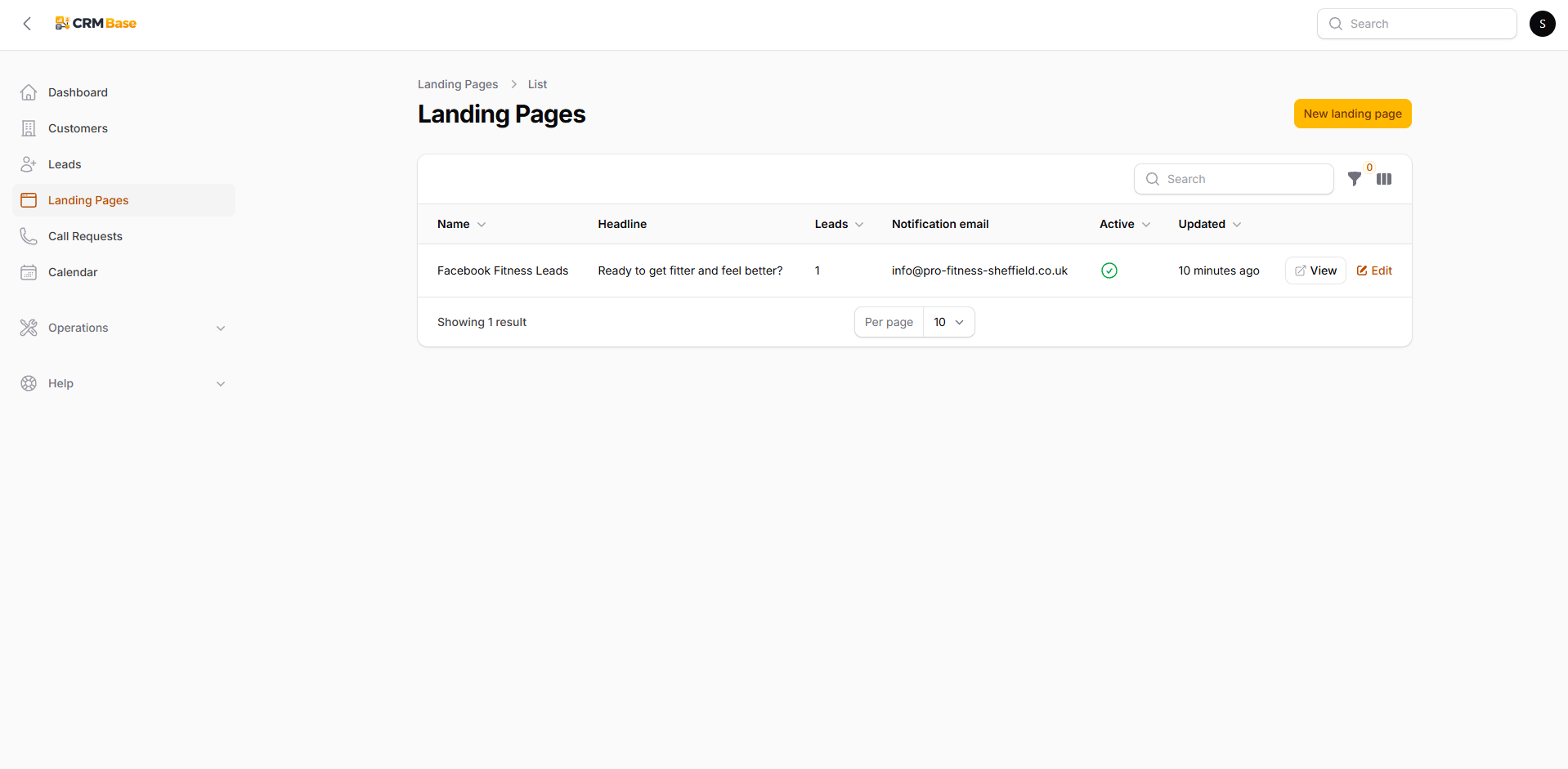 Expected resultYou can check the live visitor experience without editing the page.
- 6
Manage more than one campaign page
You can keep separate Landing Pages for different campaigns or different follow-up journeys. The Leads count helps show which pages have generated enquiries. Use clear page names so staff can tell the campaigns apart.
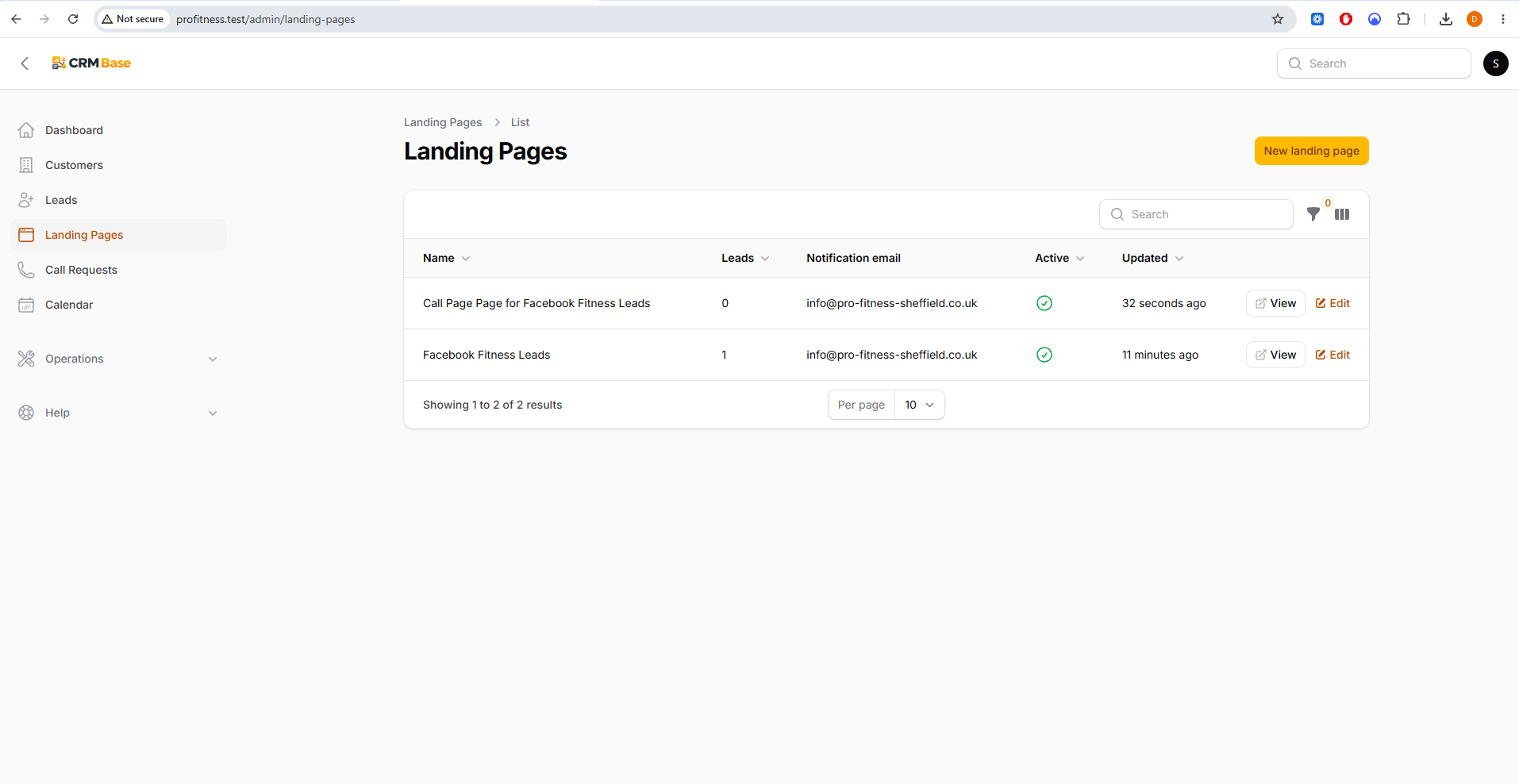 Expected resultEach campaign can have its own page and lead count.
- 7
Choose which list columns to display
Use the columns control at the top right of the table to show or hide optional columns. The Slug column is hidden by default because it is mainly useful when checking a public URL, while operational fields can remain visible.
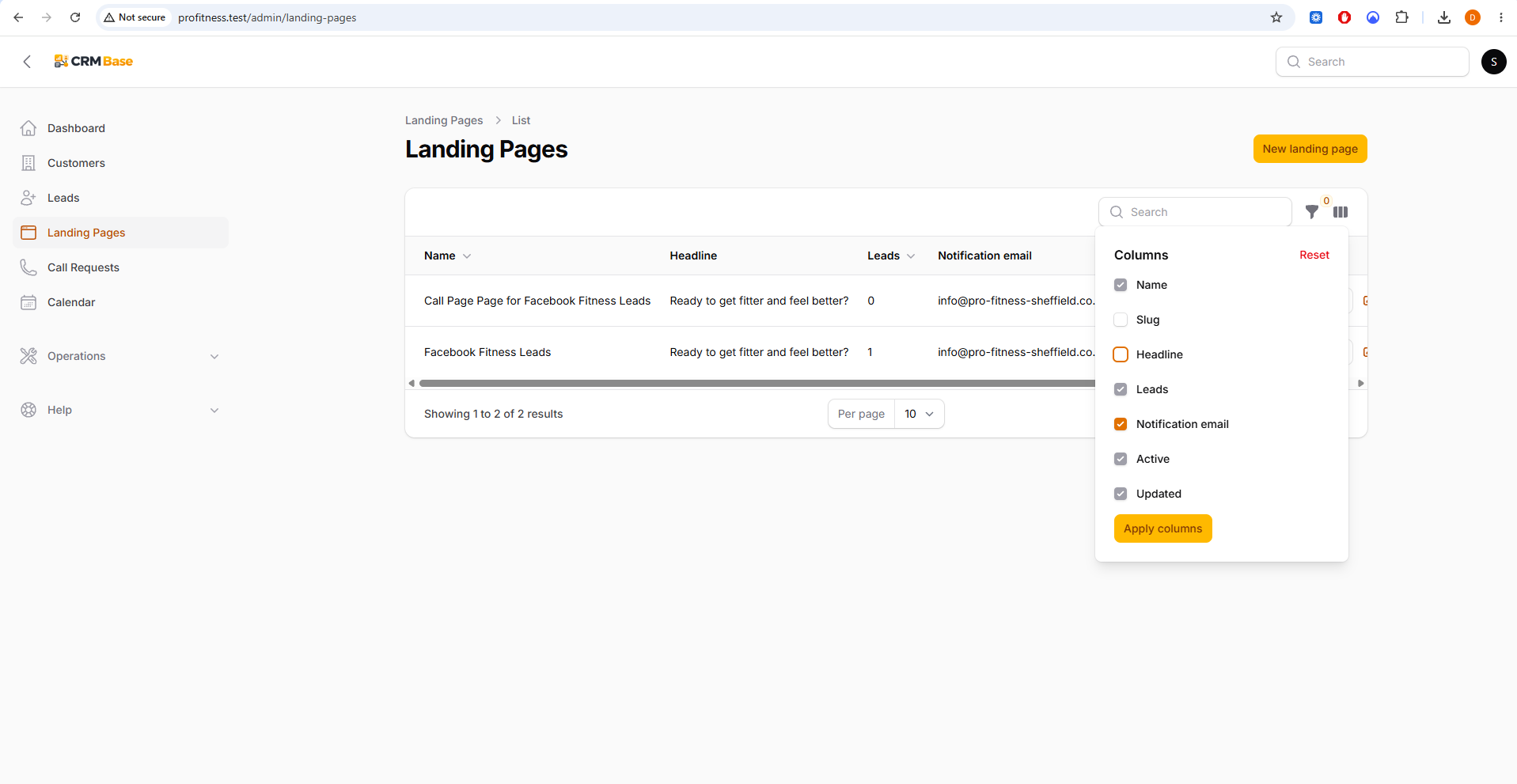 Expected resultThe Landing Pages table shows the information most useful for day-to-day work.
When you have finished
You can create campaign Landing Pages, choose the correct visitor journey, open the public version for checking, and maintain multiple pages from one list.
Troubleshooting
The public page cannot be opened
Check that the Landing Page is Active and that the slug is valid.
Visitors are seeing the wrong next step
Edit the Landing Page and check Allow appointment booking and Allow call requests. Use the combination that matches the campaign.
The public URL changed
Changing the slug changes the page address. Update any adverts or links that use the previous slug.