Handling Call Requests
Understand what a visitor sees when requesting a callback and how staff assign, contact and complete the resulting Call Request in the CRM.
Follow these steps
- 1
Visitor chooses a callback option
On a callback-enabled Landing Page, the visitor enters their contact details and chooses whether they want a call. The available choices are Call me back ASAP, No Call Back Needed and Let me specify callback time.
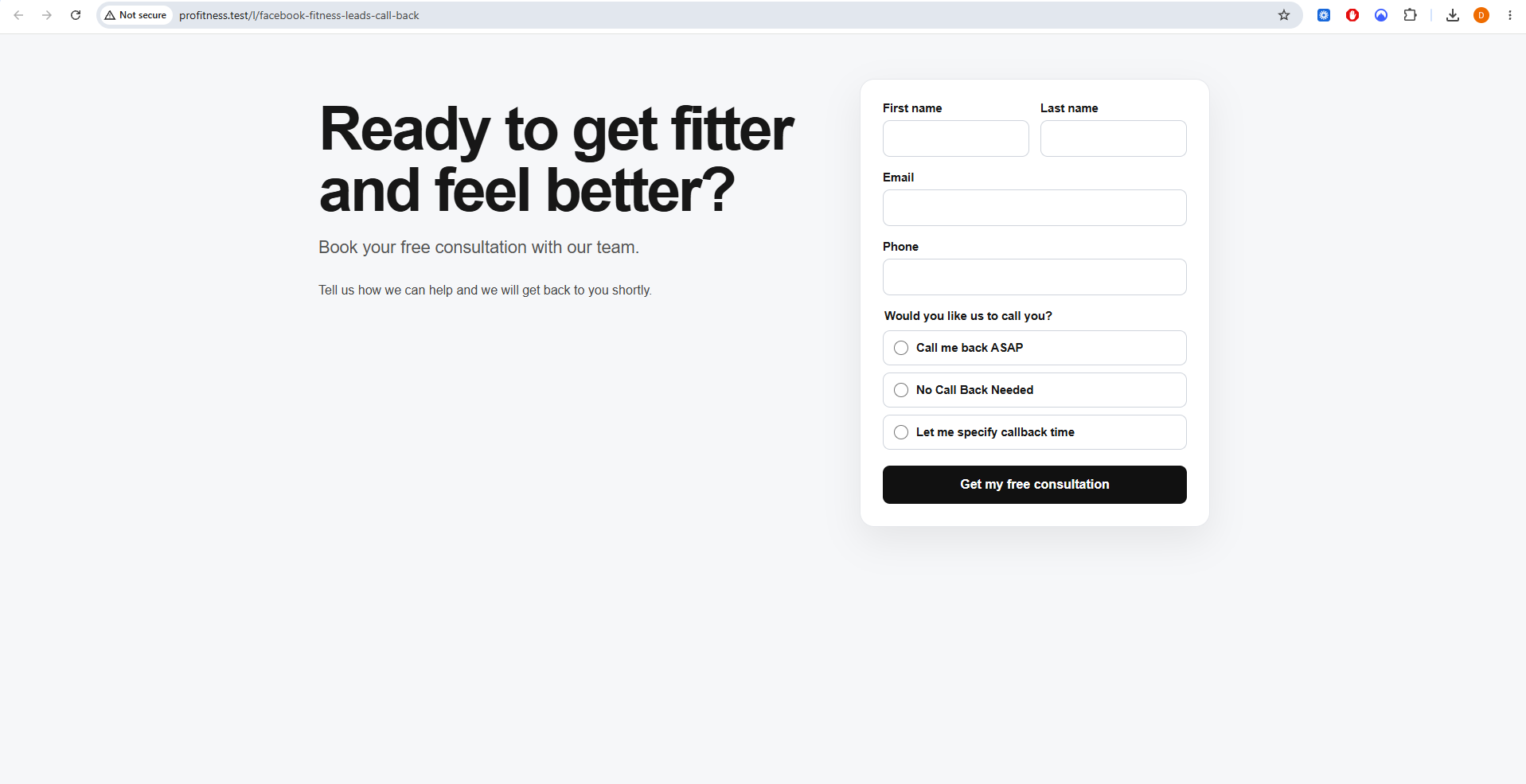 Expected resultThe visitor can choose the amount of control they want over the callback.
- 2
ASAP callback
If the visitor chooses Call me back ASAP, no preferred date or time is required. They submit the form using Get my free consultation.
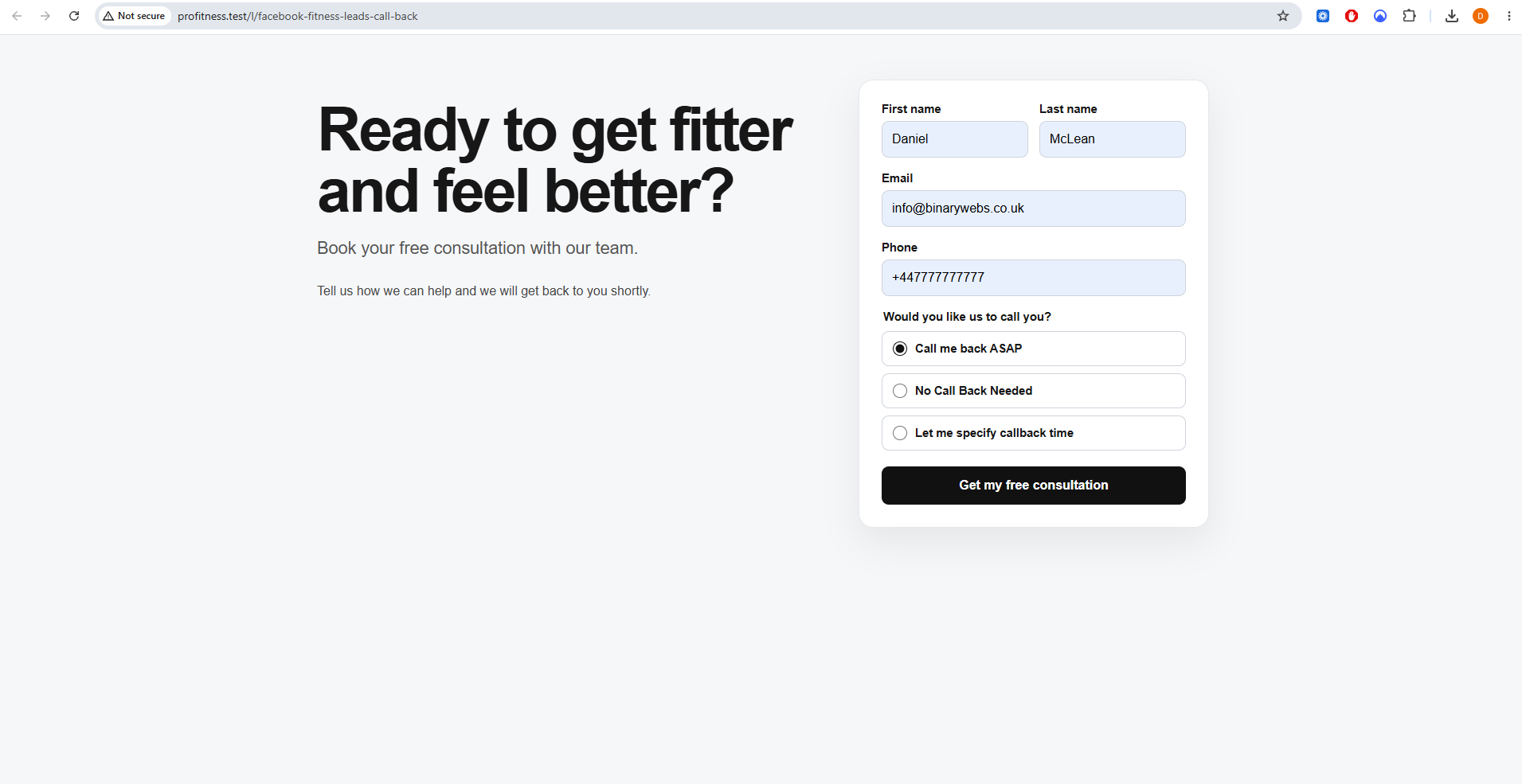 Expected resultA callback request is created without a fixed date or time.
- 3
ASAP request confirmation
After the form is submitted, the visitor sees a confirmation that the call has been requested. The CRM now holds the callback for staff to action.
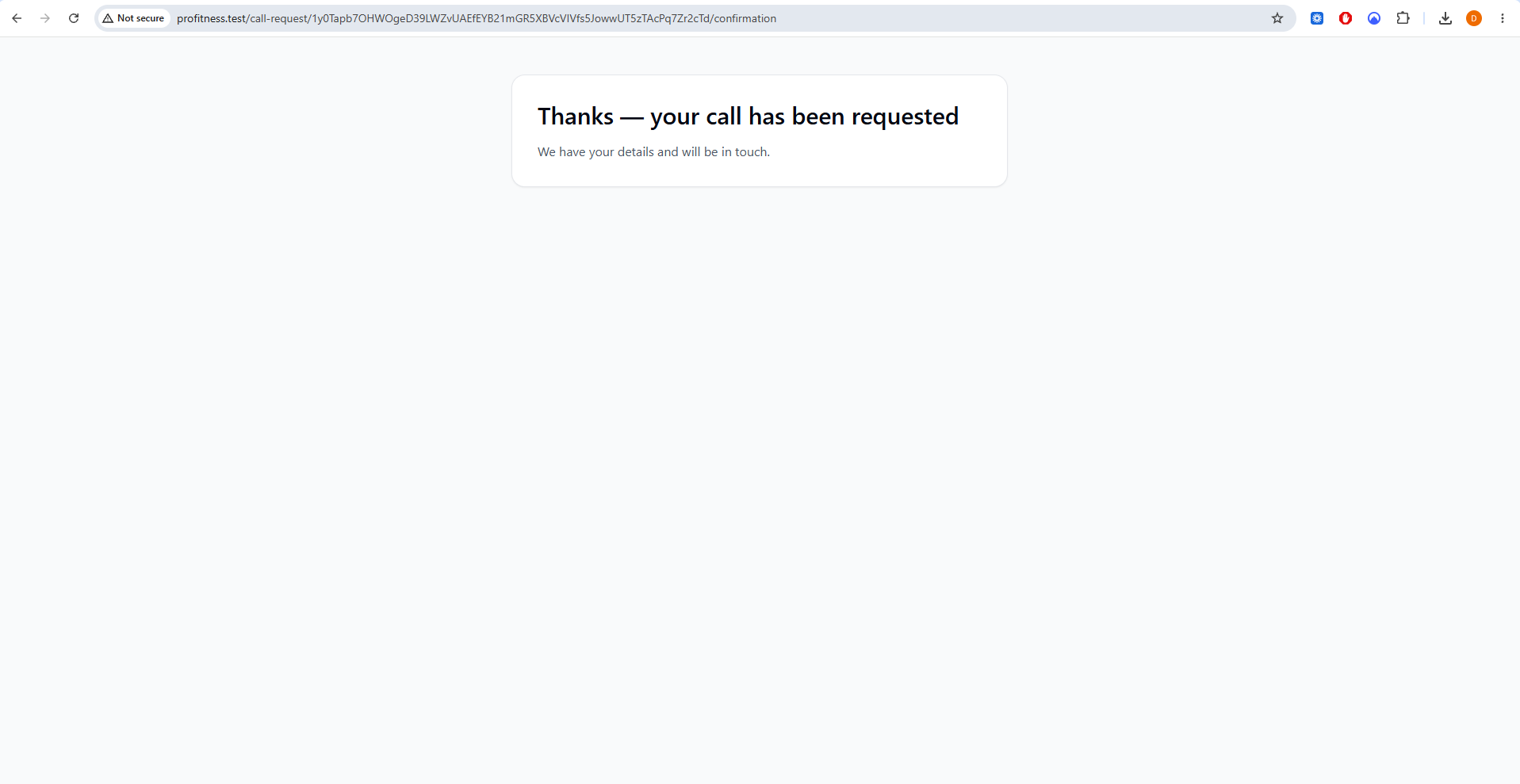 Expected resultThe visitor knows the request was received.
- 4
Visitor requests a specific callback time
If the visitor selects Let me specify callback time, the form explains that the preferred time will be chosen on the next screen.
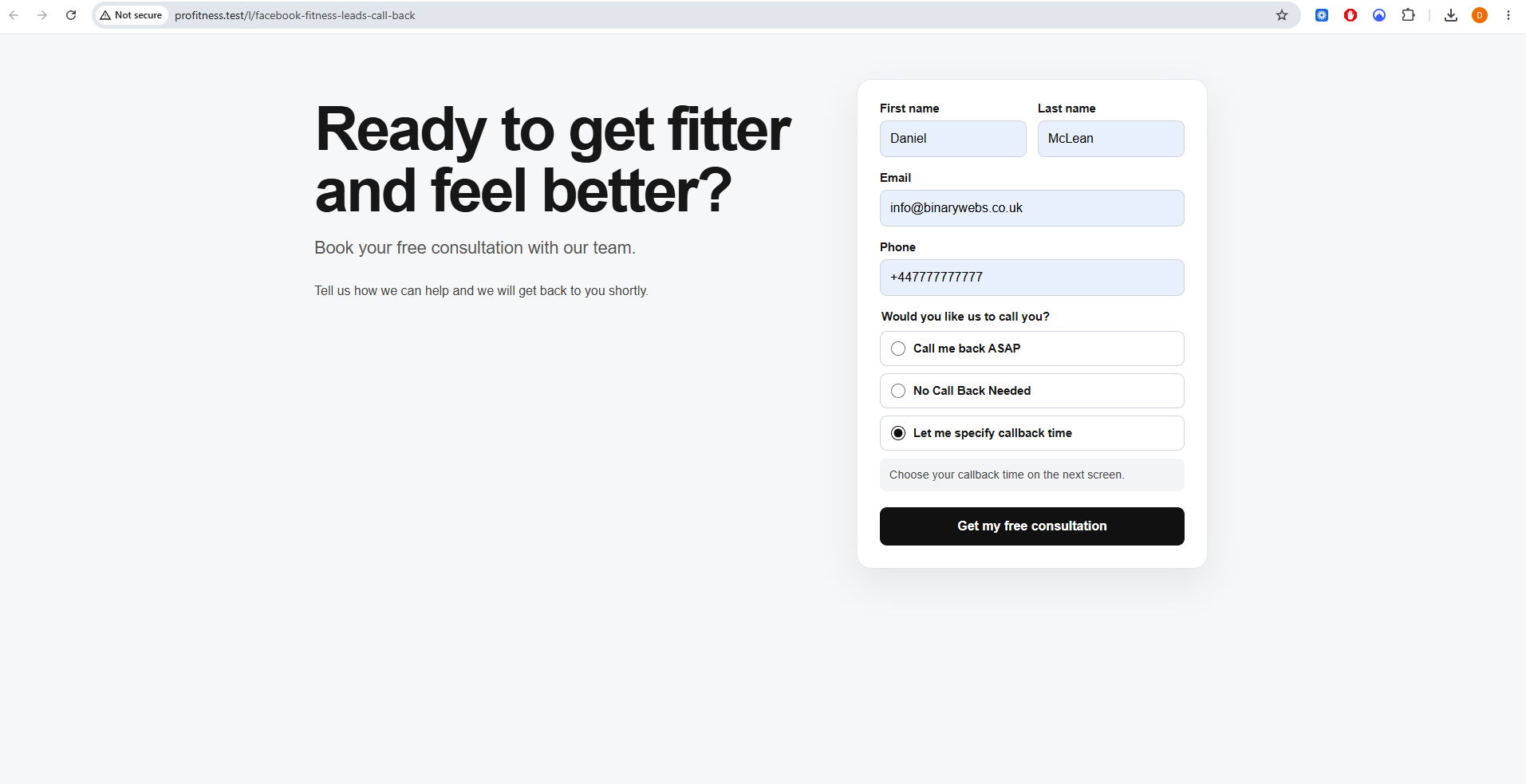 Expected resultThe visitor is taken to the callback scheduling screen.
- 5
Choose callback date and time window
The visitor can choose Today, Tomorrow or Any day, or select an exact date. They can also choose Morning, Lunchtime, Afternoon or Any time, or enter exact From and To times. An optional note can be added before selecting Request my call.
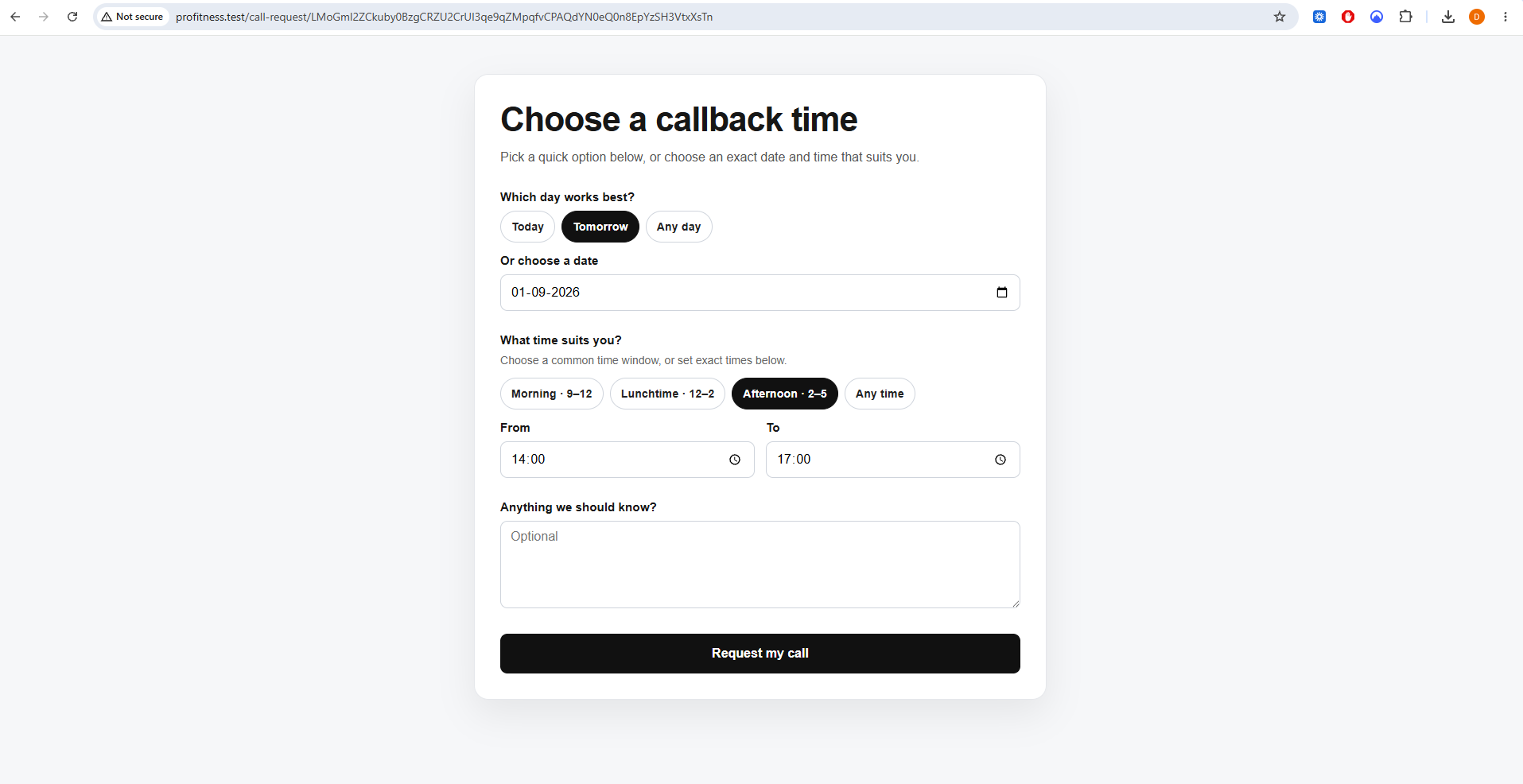 Expected resultThe CRM receives a callback request with useful timing preferences.
- 6
Specific callback confirmation
After the callback preference is submitted, the visitor receives the same simple confirmation that the request has been received.
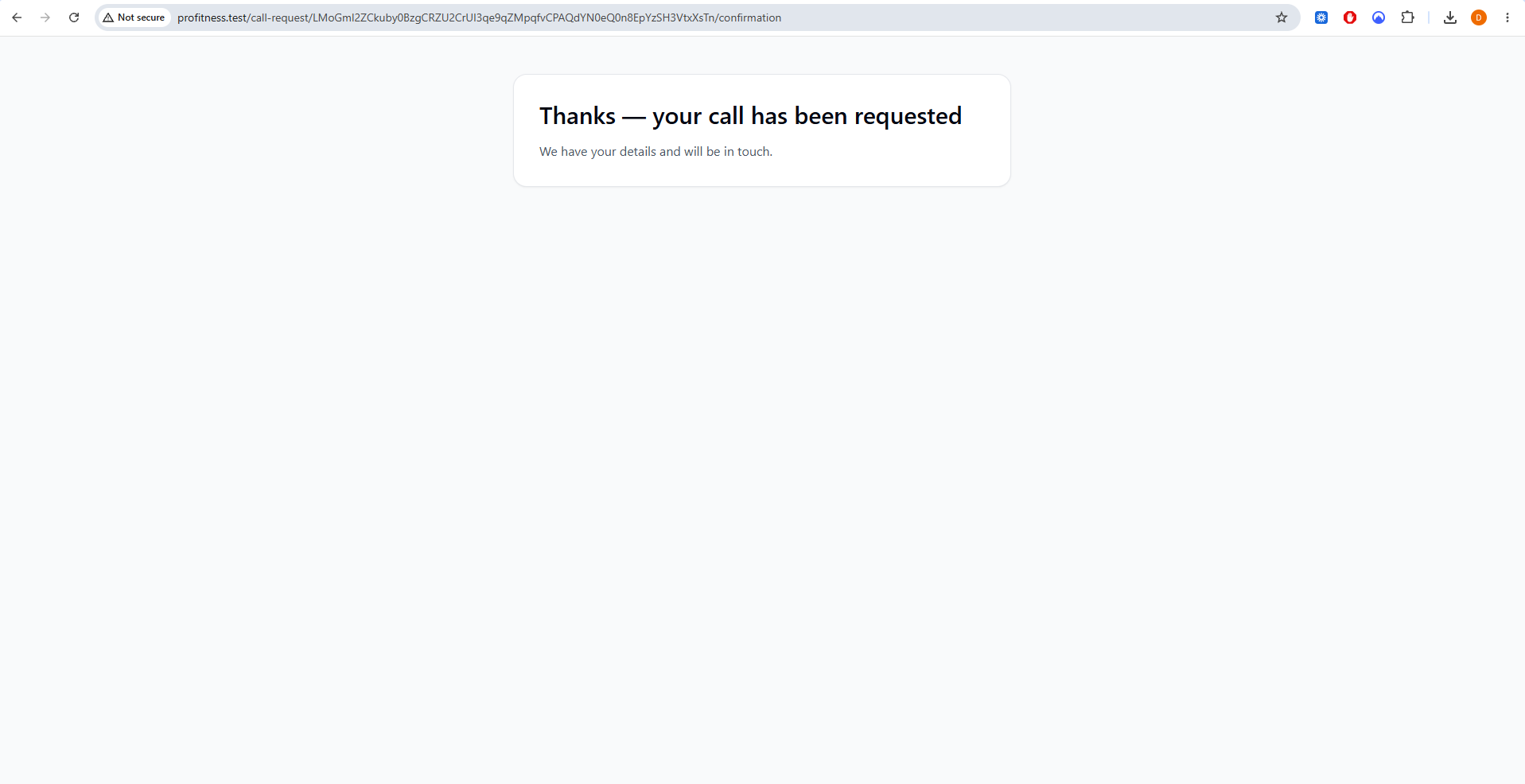 Expected resultThe visitor has completed the callback journey.
- 7
New request appears in Call Requests
Open Call Requests in the main navigation. A new request normally appears with Requested status. The row shows the Lead, preferred date and time where supplied, the assigned user and when the request was received.
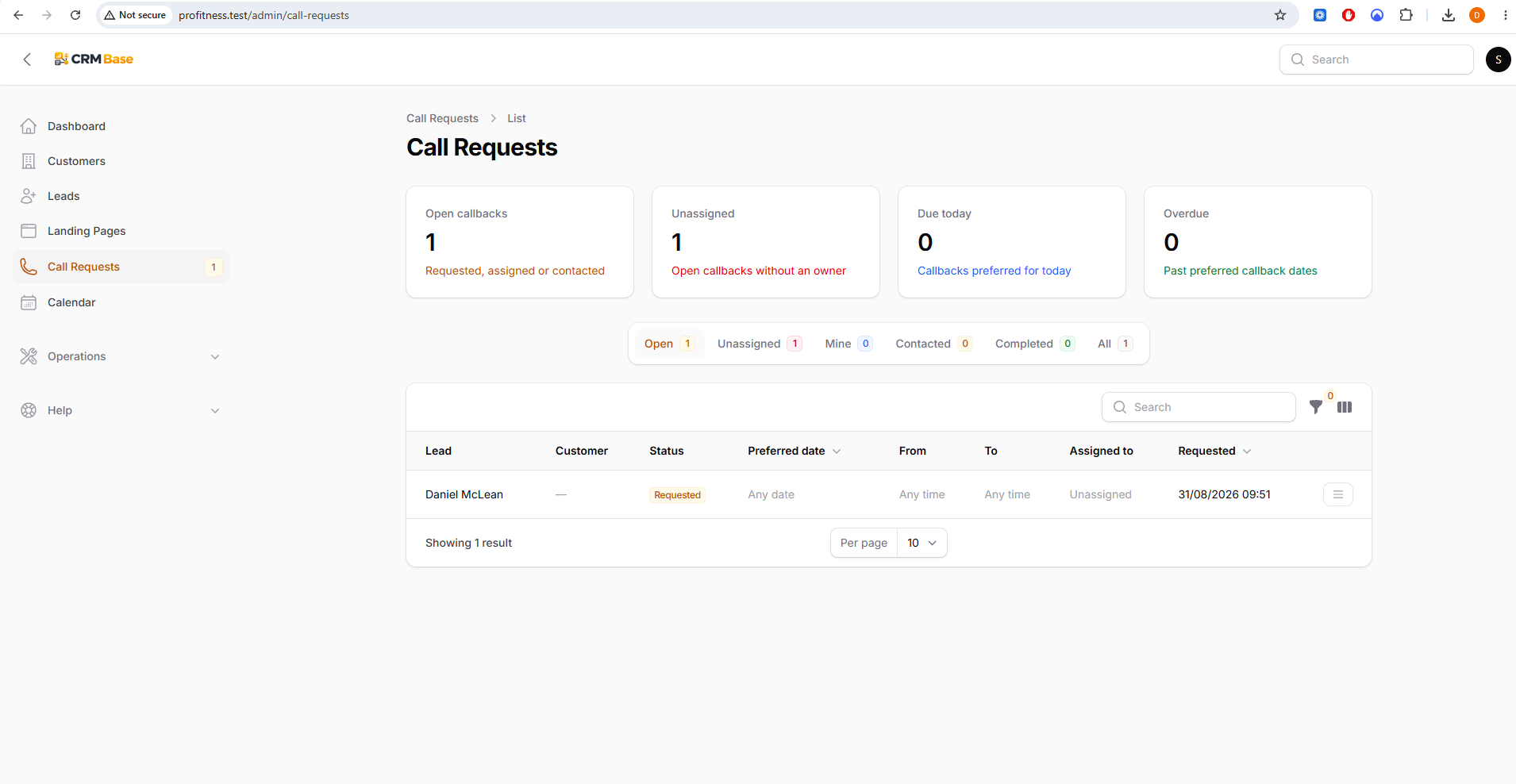 Expected resultStaff can immediately see the new callback and whether it is unassigned.
- 8
Use the row actions
Open the actions menu at the end of the row. From here you can View Lead, Assign to me, Mark contacted, Complete, Cancel or Edit. Use these actions instead of manually changing unrelated Lead fields.
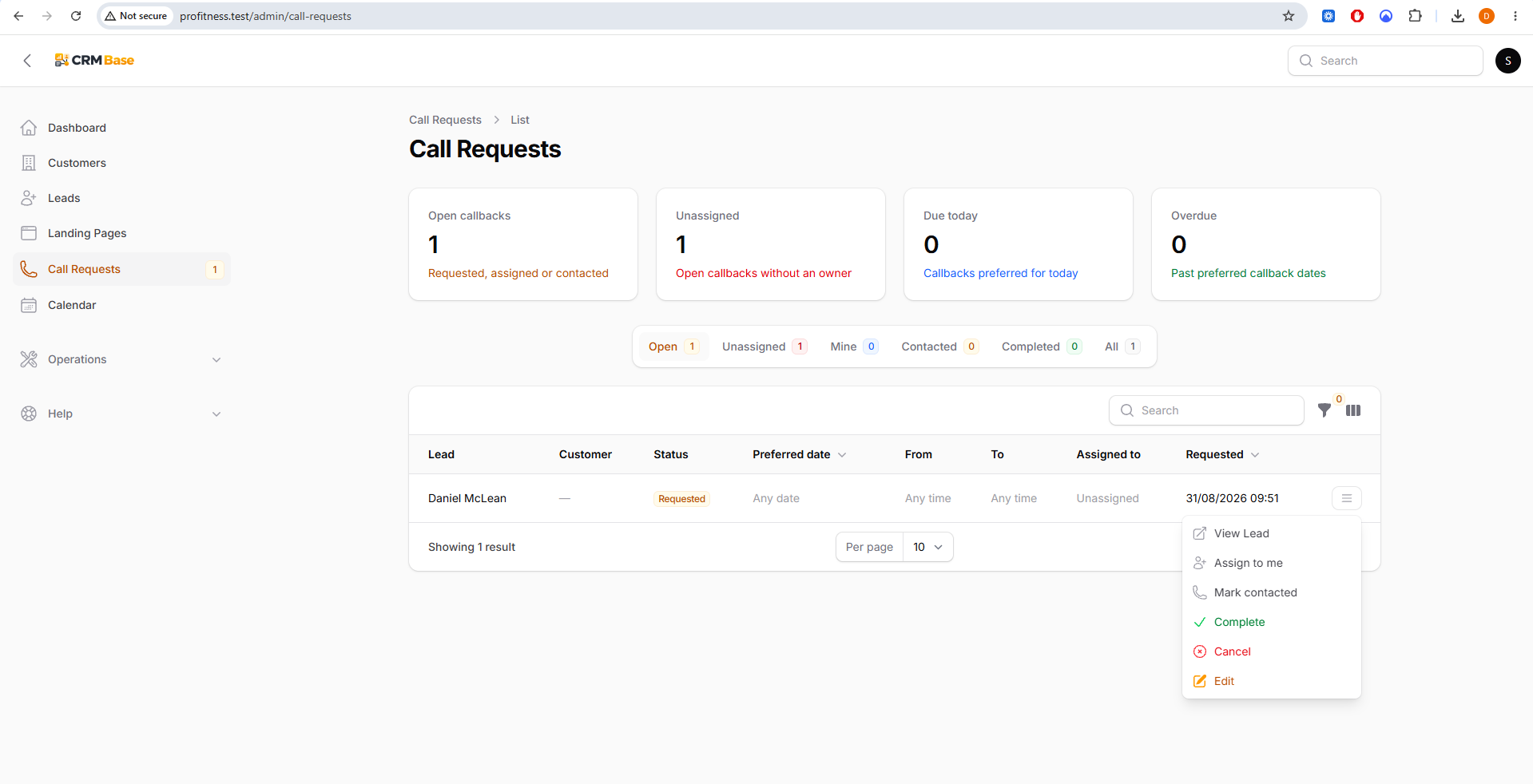 Expected resultThe request can be progressed using a consistent callback workflow.
- 9
Record that contact has been made
After speaking to the Lead, use Mark contacted. The request moves to Contacted and the Assigned to column shows the owner when one has been set.
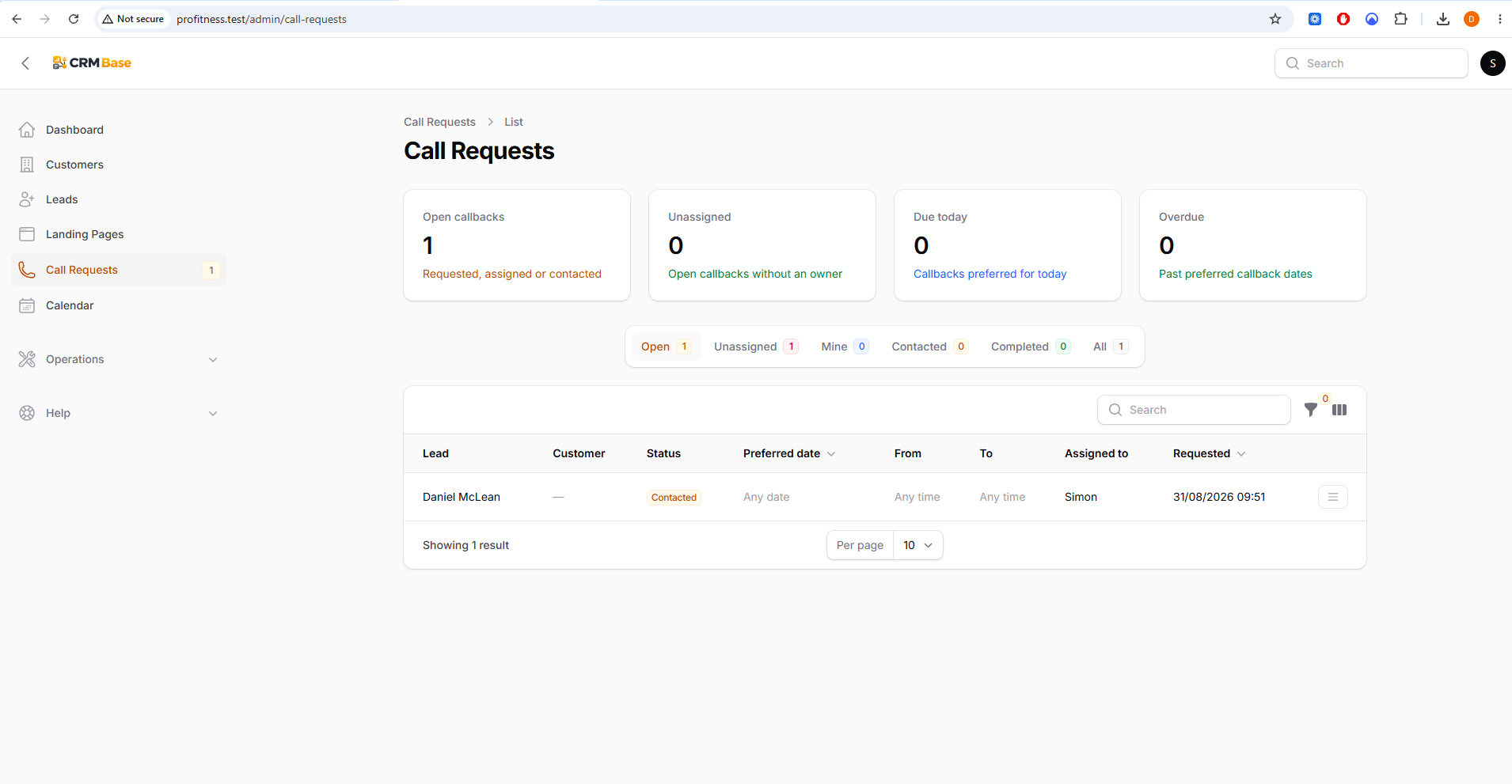 Expected resultThe CRM shows that the callback has been actioned but is not necessarily complete.
- 10
Monitor all open callback work
The summary cards and tabs help separate Open, Unassigned, Mine, Contacted, Completed and All requests. When several callbacks exist, use these views to make sure nothing remains unassigned or overdue.
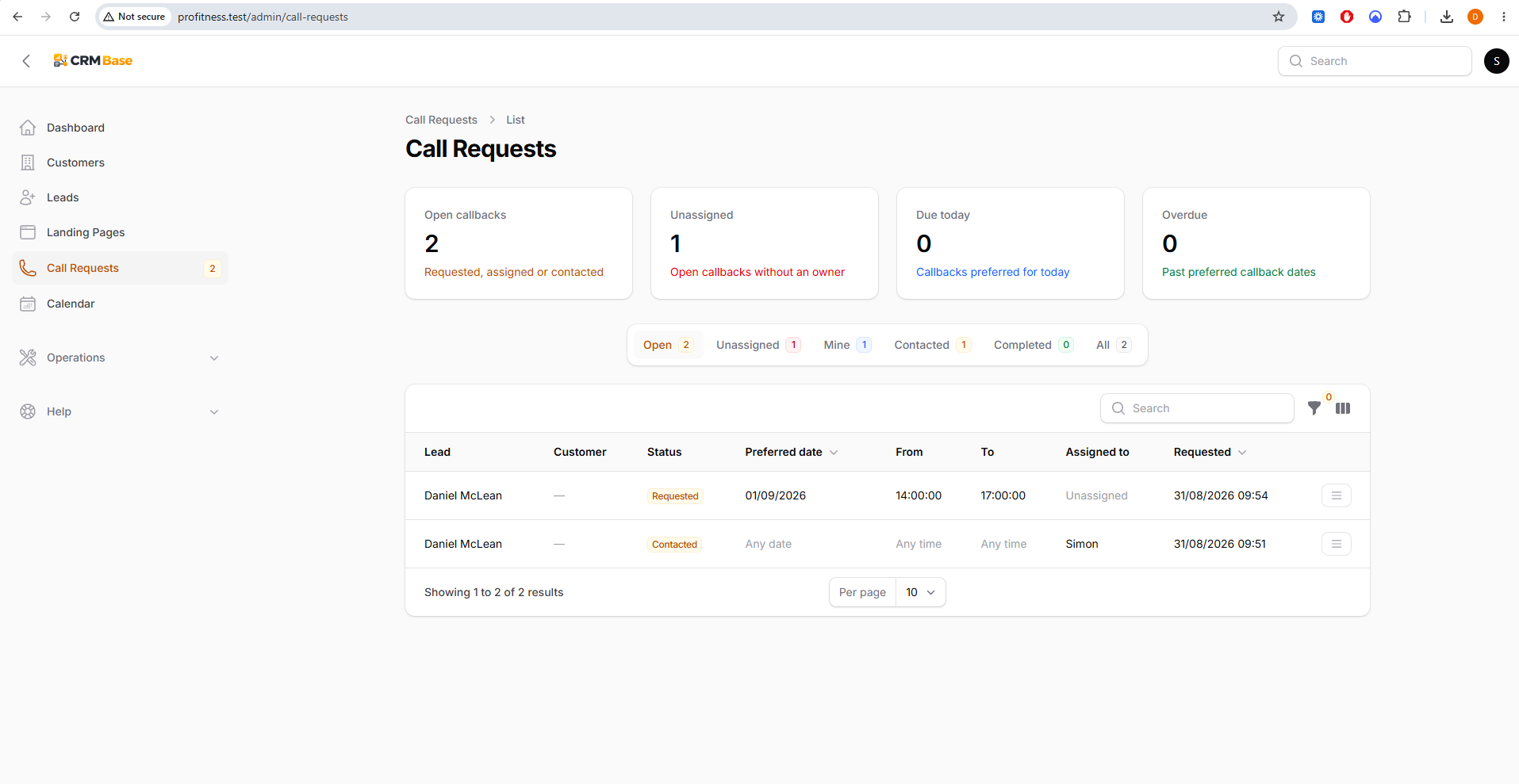 Expected resultThe team can manage multiple callback requests without losing track of their state.
When you have finished
You can explain the complete callback journey to the client and manage each request from visitor submission through assignment, contact and completion.
Troubleshooting
A callback has no preferred date or time
This is normal for an ASAP or Any day / Any time request. Treat it as an open callback without a fixed slot.
A callback is still Unassigned
Use Assign to me or edit the request to choose the appropriate owner.
A callback remains in the Open total after speaking to the Lead
Use Mark contacted or Complete so the request status reflects what actually happened.