Using the Calendar
See booked appointments and other CRM events in a month view, then open an event to review or change its details.
Follow these steps
- 1
Review appointments in the month view
Open Calendar from the main navigation. Appointments created through public booking appear on the correct date and time. Use the previous and next arrows to move between months, Today to return to the current period, View Events for the table view, or New Event to add an event manually.
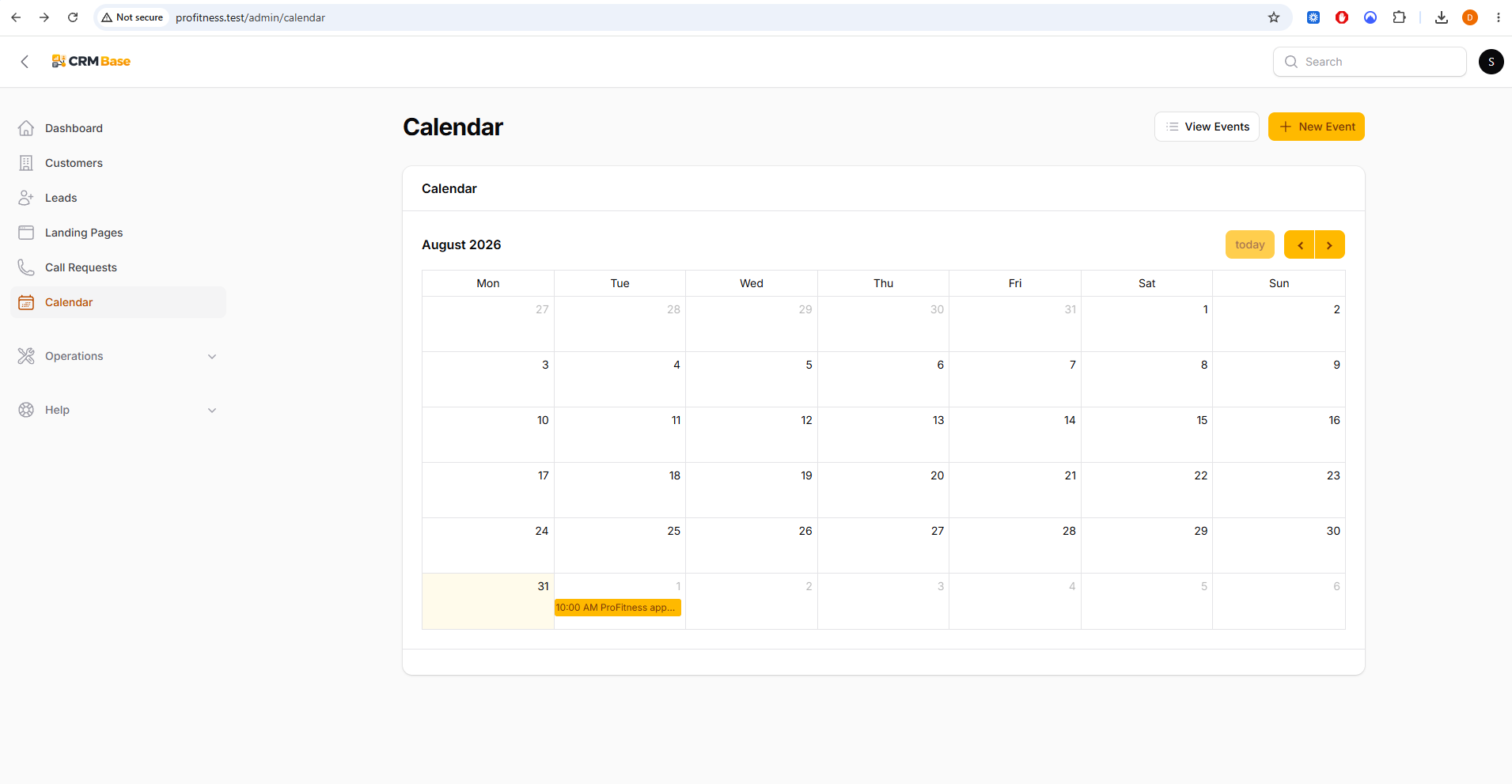 Expected resultYou can see scheduled CRM activity in date order.
- 2
Open and edit an event
Select an event on the Calendar to open it. You can review or edit the title, type, status, location, description, start and end times and CRM links. Public bookings are clearly described as booked by the Lead through the public booking page.
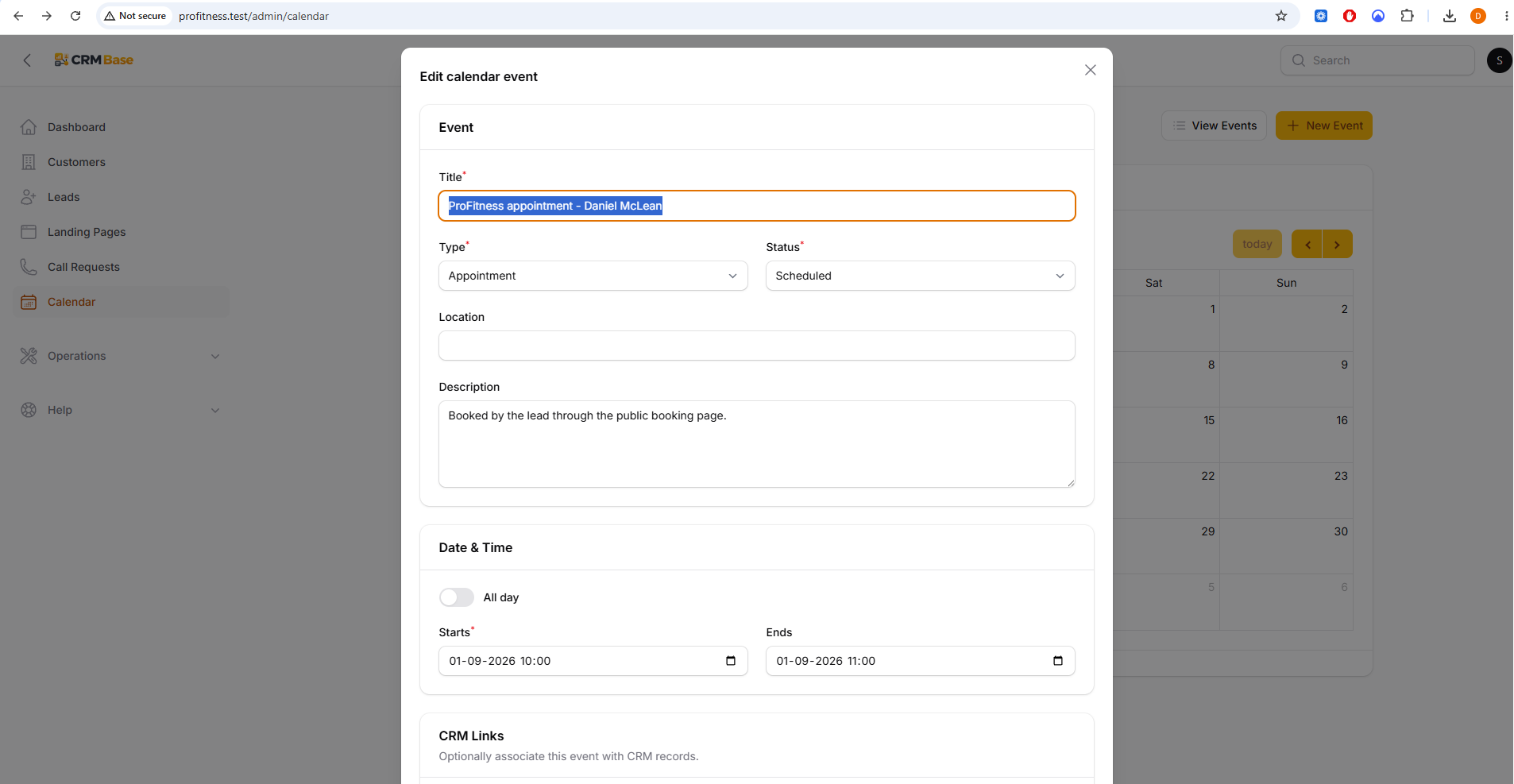 Expected resultThe Calendar event can be updated while remaining linked to the relevant CRM record.
When you have finished
You can use the Calendar as the main date-based view of appointments and other events, while still managing the same appointment from its Lead or Customer.
Troubleshooting
An appointment is missing from the Calendar
Open the Lead Appointments tab and confirm the booking exists and is not cancelled.
An event is on the wrong date or time
Open the event and correct Starts and Ends, or use Reschedule from the Lead appointment.