Handling Appointment Bookings
Follow the public appointment-booking journey and manage the resulting booked appointment from the Lead record.
Follow these steps
- 1
Visitor submits an appointment-enabled Landing Page
When Allow appointment booking is enabled on a Landing Page, the public form explains that available appointment dates and times will be offered after the visitor submits their contact details.
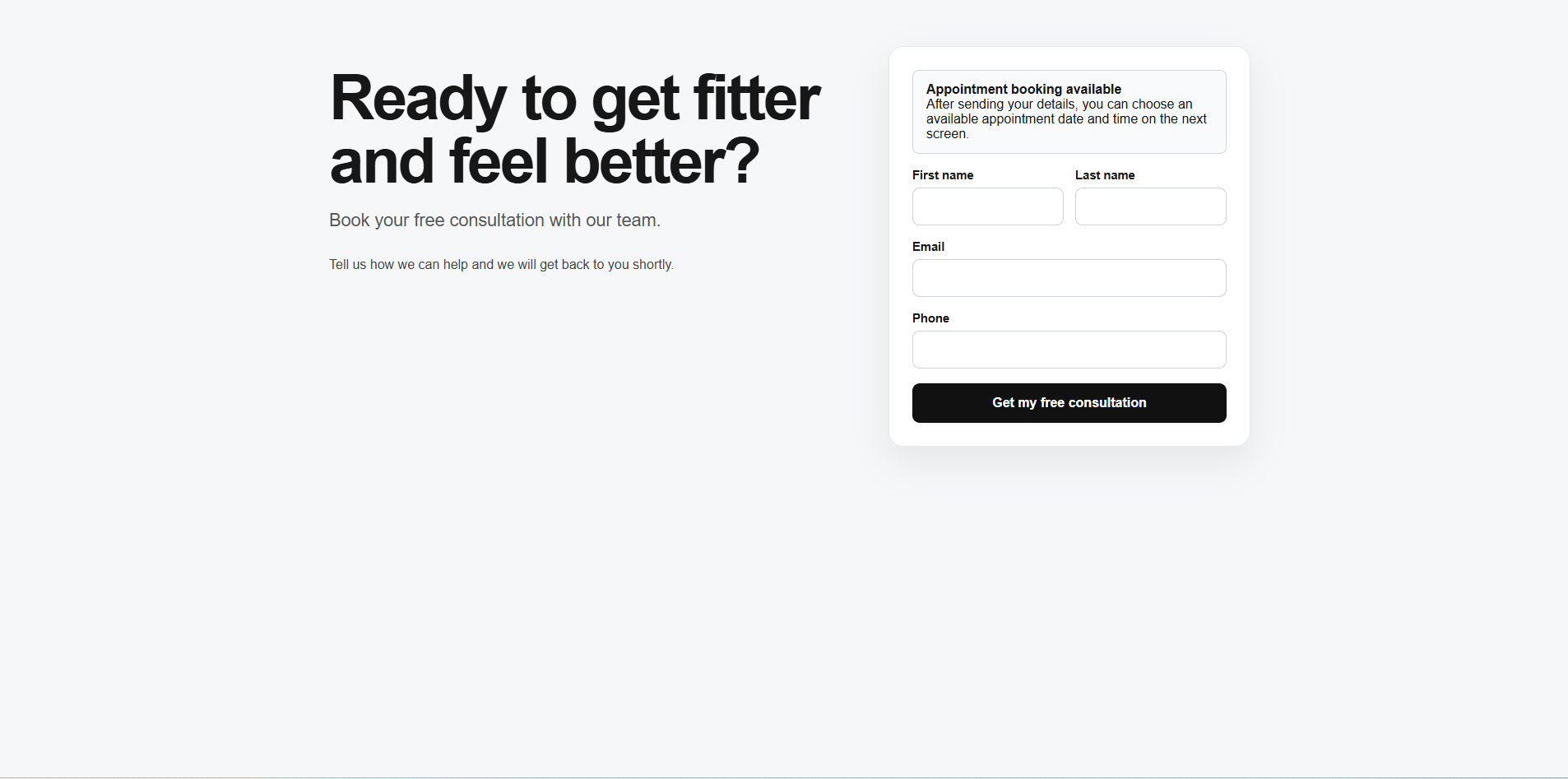 Expected resultThe visitor knows that an appointment can be chosen immediately after the enquiry.
- 2
Choose an available appointment slot
After submitting the enquiry, the visitor sees available dates and times in UK time. Select a time button, then use Book appointment to confirm the chosen slot.
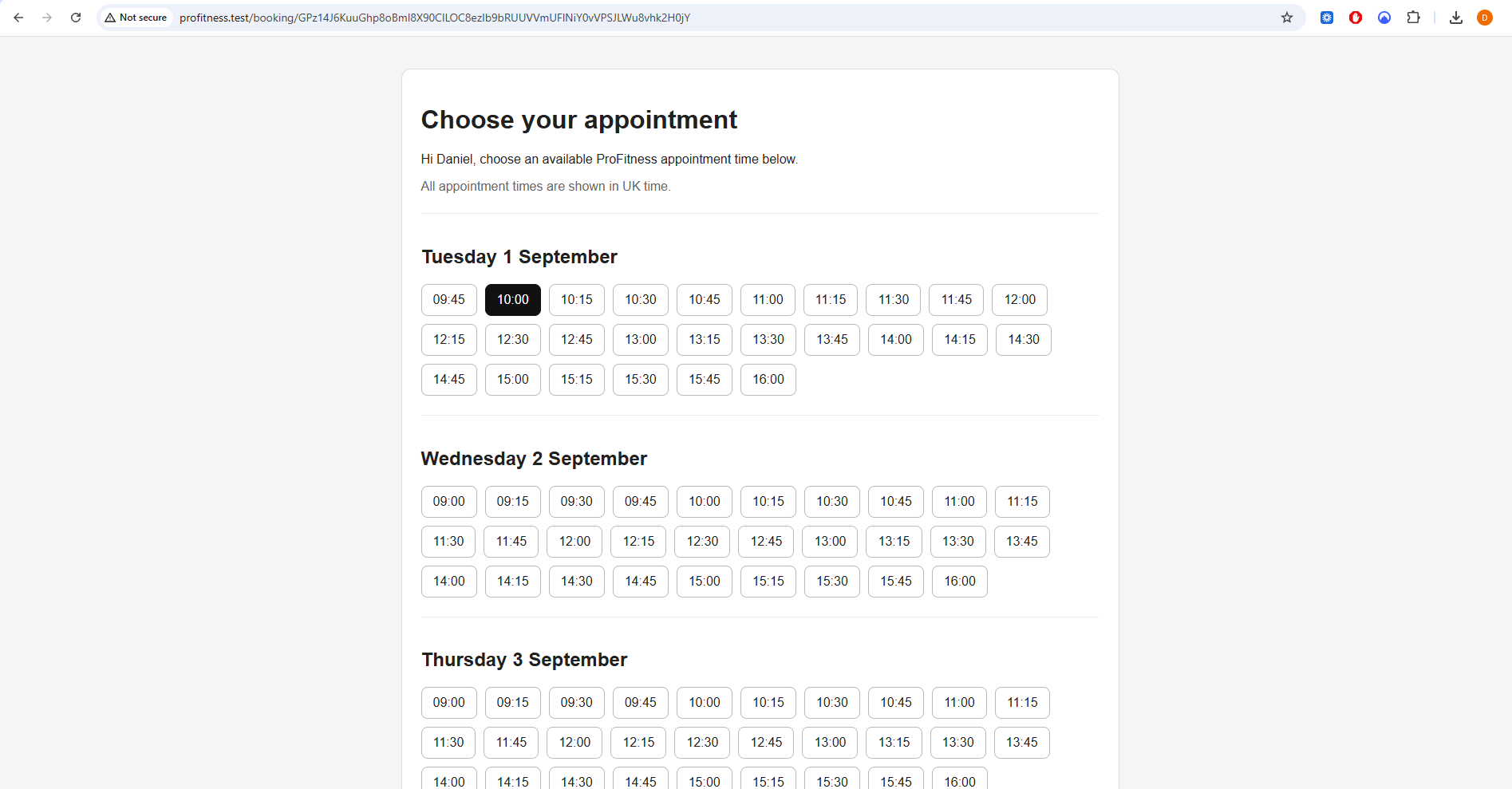 Expected resultA specific appointment time is selected.
- 3
View later dates when needed
If the first dates are not suitable, use Later dates to move further into the booking window. Only times allowed by Booking Settings and current availability are shown.
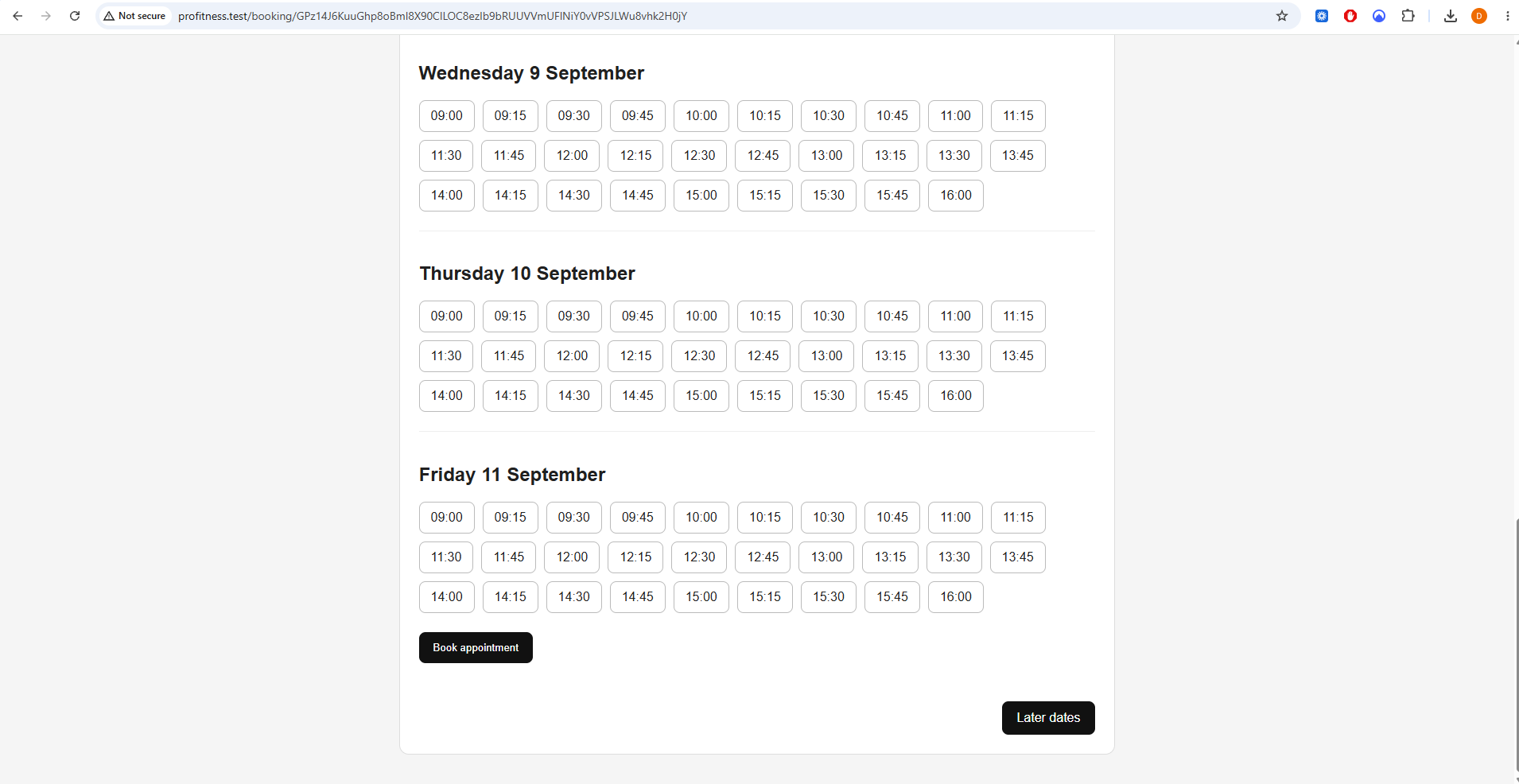 Expected resultThe visitor can find a suitable slot without contacting staff first.
- 4
Booking confirmation
After the appointment is booked, the confirmation page shows the exact date and time and confirms that an email has been sent. The time is shown in UK time.
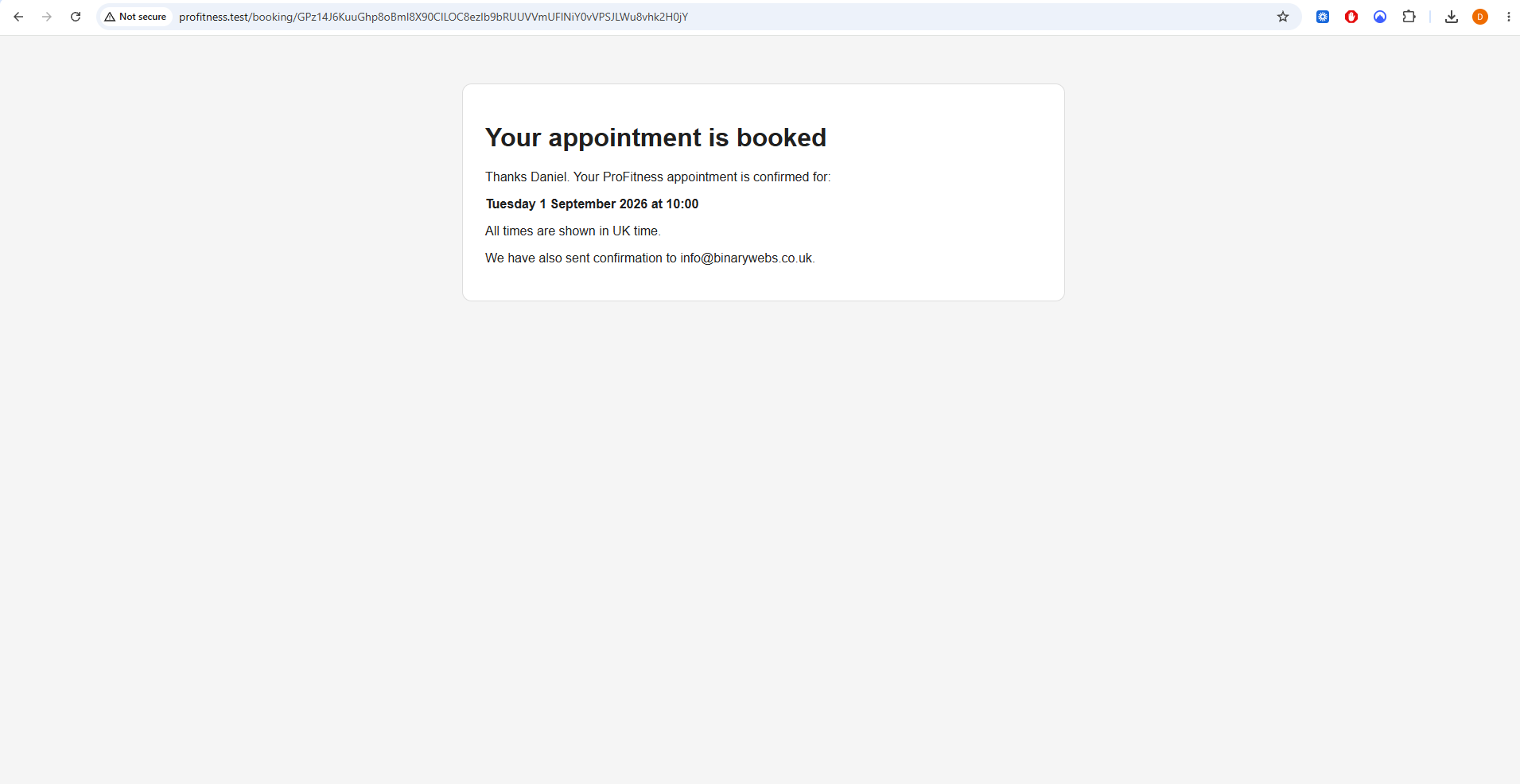 Expected resultThe visitor has clear confirmation of the appointment.
- 5
Lead moves to Appointment Booked
Back in the CRM, the Lead is shown with Appointment Booked status and appears in the Booked tab. This makes booked consultations easy to separate from callbacks and other active Leads.
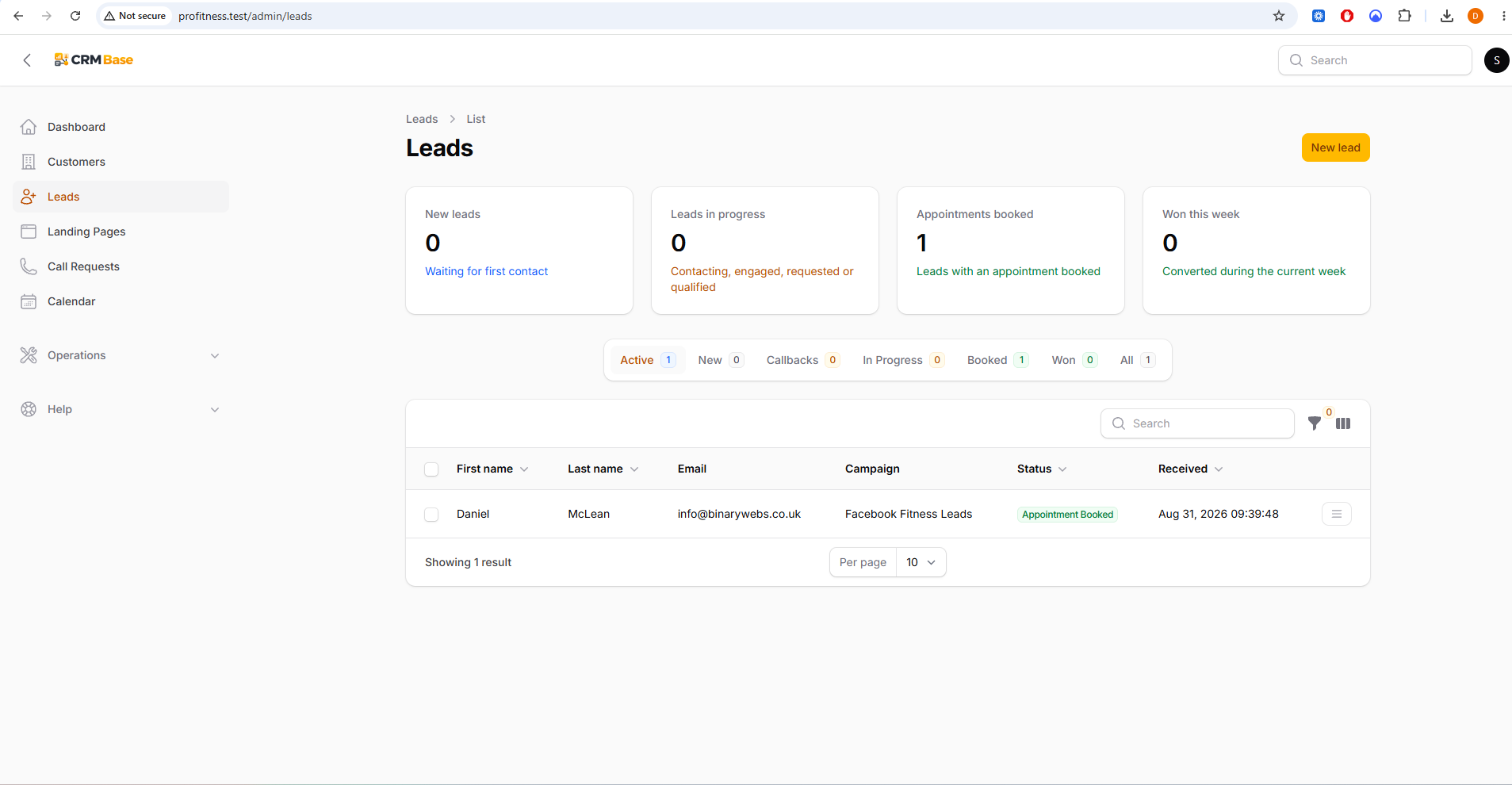 Expected resultThe Lead list reflects the new appointment automatically.
- 6
Manage the appointment from the Lead
Open the Lead and select the Appointments tab. The booked appointment is listed with its status, owner and location. Use Reschedule to choose another valid time, or Cancel if the appointment will no longer take place.
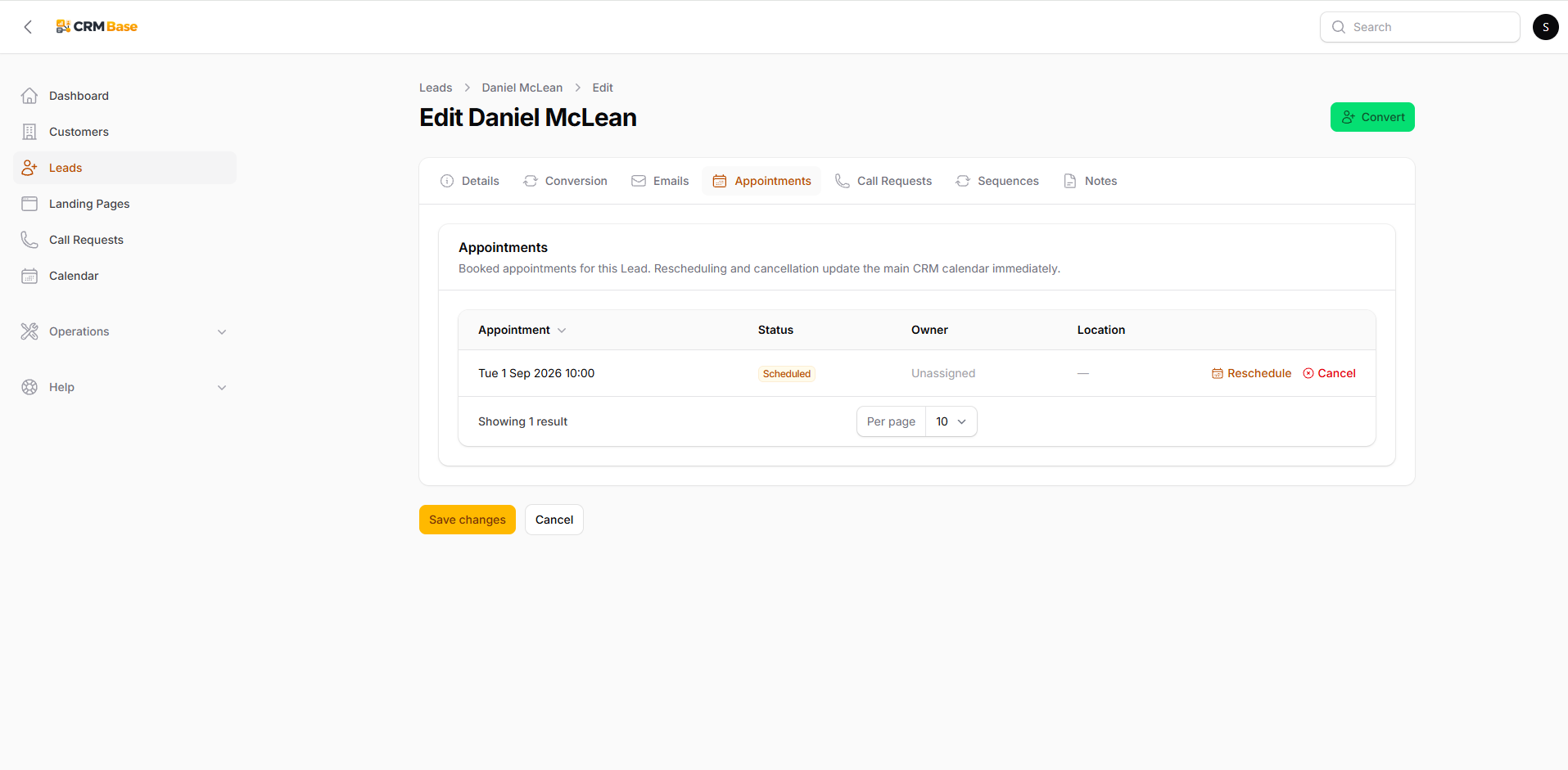 Expected resultThe appointment can be managed without leaving the Lead record.
When you have finished
You can follow a booking from the public Landing Page through slot selection and confirmation, then manage the resulting appointment from the Lead record.
Troubleshooting
No appointment times are offered
Check Booking Settings, business hours, blackouts, minimum notice, maximum booking window and existing appointments.
A reschedule time is unavailable
Choose a time that falls within the configured availability and does not conflict with another booking.
The Lead is not in the Booked tab
Open the Lead and confirm the current status and that the appointment was created successfully.