Managing Booking Settings
Control the appointment times offered to visitors by setting duration, notice, booking window, ownership, blackout periods and business hours.
Follow these steps
- 1
Open Booking Settings
Open Operations and select Booking Settings. The list summarises the booking profile, timezone, appointment duration, minimum notice, how far ahead visitors can book and the default owner. Select Edit to change these rules.
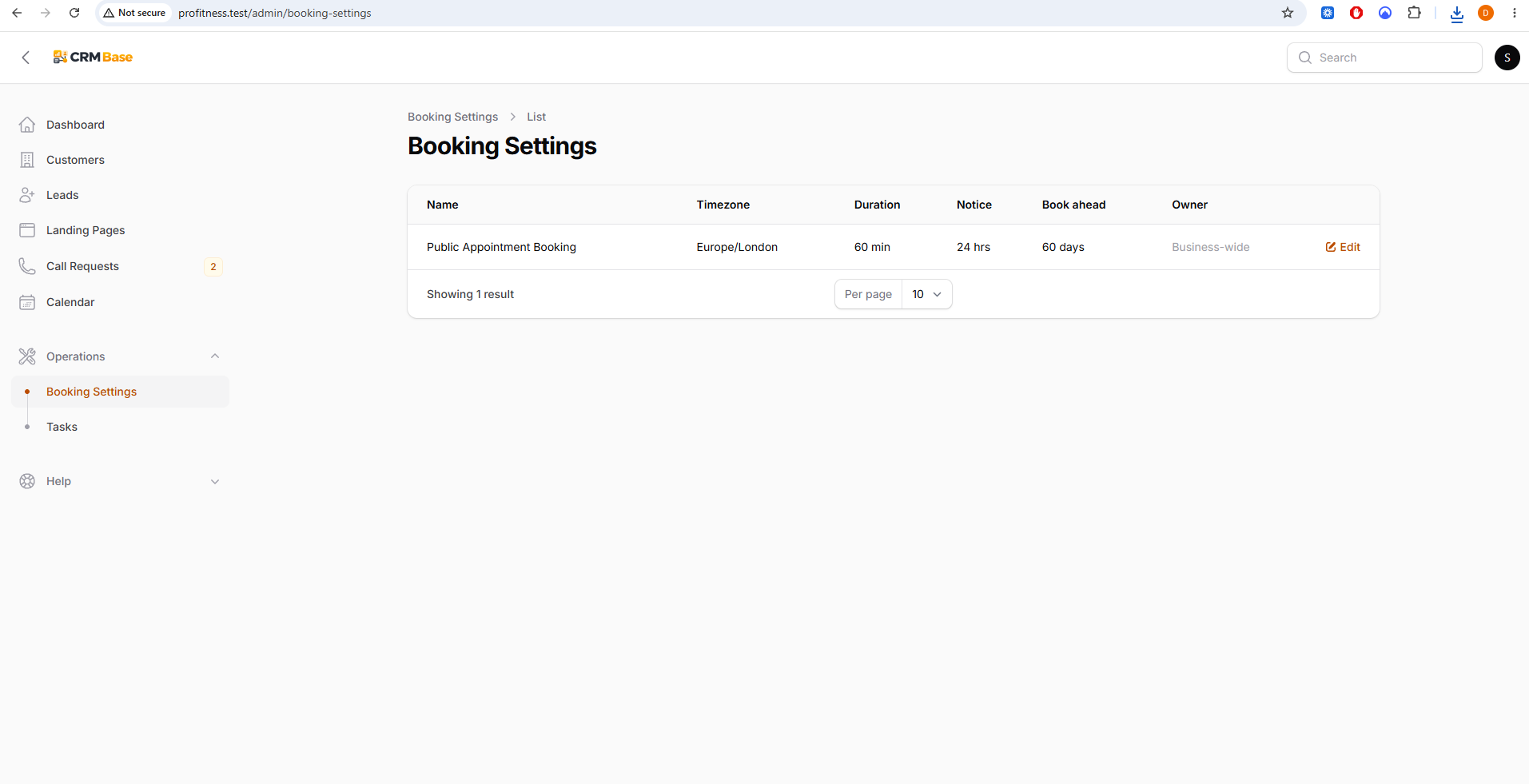 Expected resultYou can confirm the current public booking configuration before making changes.
- 2
Configure booking rules, blackouts and business hours
In Edit Booking Setting, review the timezone, Appointment duration, Slot interval, Buffer before, Buffer after, Minimum booking notice and Maximum booking window. Default appointment owner controls who normally receives new bookings. Use Unavailable dates and times for holidays, meetings or other periods that must not be offered. In Business hours, turn each day on or off and set its Starts and Ends times.
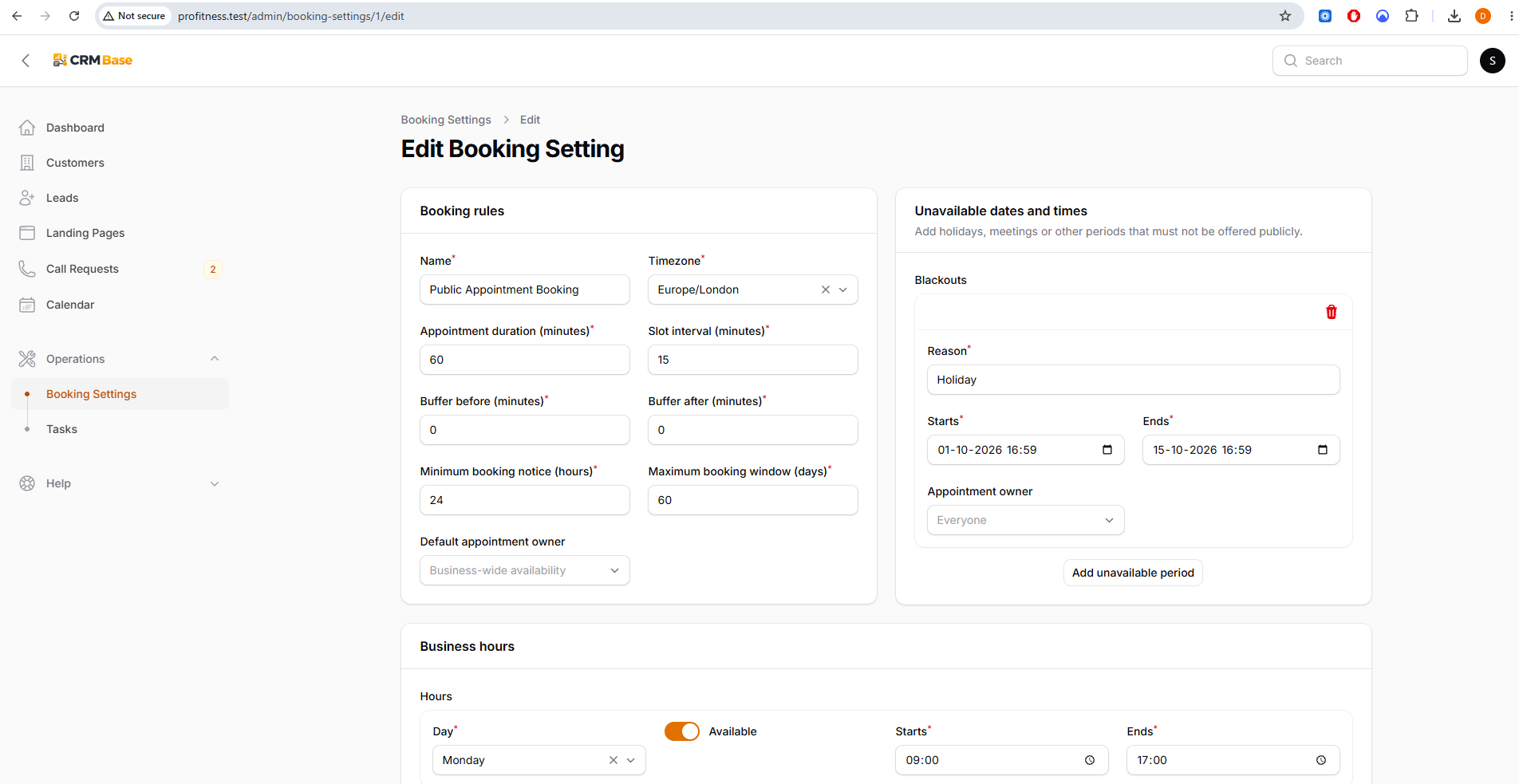 Expected resultThe public booking page only offers slots that match the rules, business hours and unavailable periods.
When you have finished
The public booking journey offers only suitable appointment times and new bookings are assigned according to the configured ownership rules.
Troubleshooting
No public appointment times are available
Check that business hours are enabled, the requested dates are inside the maximum booking window, minimum notice is satisfied and no blackout covers the period.
Visitors can book at an unwanted time
Check the business-hours row, slot interval, buffers and blackout periods.
Appointments are assigned to the wrong user
Review Default appointment owner in Booking Settings.